

🐴 Exploring Pencil.dev: Walkthrough and Impressions
Interfaces, features, issues, and more

The next cohort of AI for Product Designers will start on April 28.
Pencil is an AI-powered design tool that uses AI agents to generate UI from prompts.
The capabilities of these development-based AI tools, like Cursor, raised a question: if they’re so powerful for development, could a similar tool be used more for design?
That’s the context when Pencil launched. It got a lot of attention for introducing a new way to generate designs and manage them.
It is one of the most intriguing AI design tools I’ve come across this year.
So in today’s newsletter, I’ll break down what Pencil is, what makes it useful, and where it still falls short.
Let’s get into it.
Overview
Pencil is more of a design tool for developers, although it has the potential to be used by a broader audience.
It’s like a Figma-like canvas built into AI-powered development environment. If you are already familiar with development-based workflows, it feels like a natural extension for design purposes.
Tom Krcha is the creator behind Pencil.dev, who previously built Around, the video call tool acquired by Miro, and co-founded Alter avatars, which was acquired by Google.
He started playing with Cursor and noticed how painful it was to describe UI elements like buttons or navigation bars in plain text. That sparked a prototype, and he realized there’s a whole world of “vibe designing” waiting to be unlocked. The idea moved fast, earning funding through a16z Speedrun by Andreessen Horowitz.
Pencil was officially launched in late January 2026 and hit a big milestone of 100,000 users shortly after its launch.
Interface
It has both a desktop app and an extension in Cursor.
Desktop App’s Interface
If you’re familiar with Figma, the layout will feel familiar.
There’s a layers panel on the left, properties on the right, and a canvas in the middle.
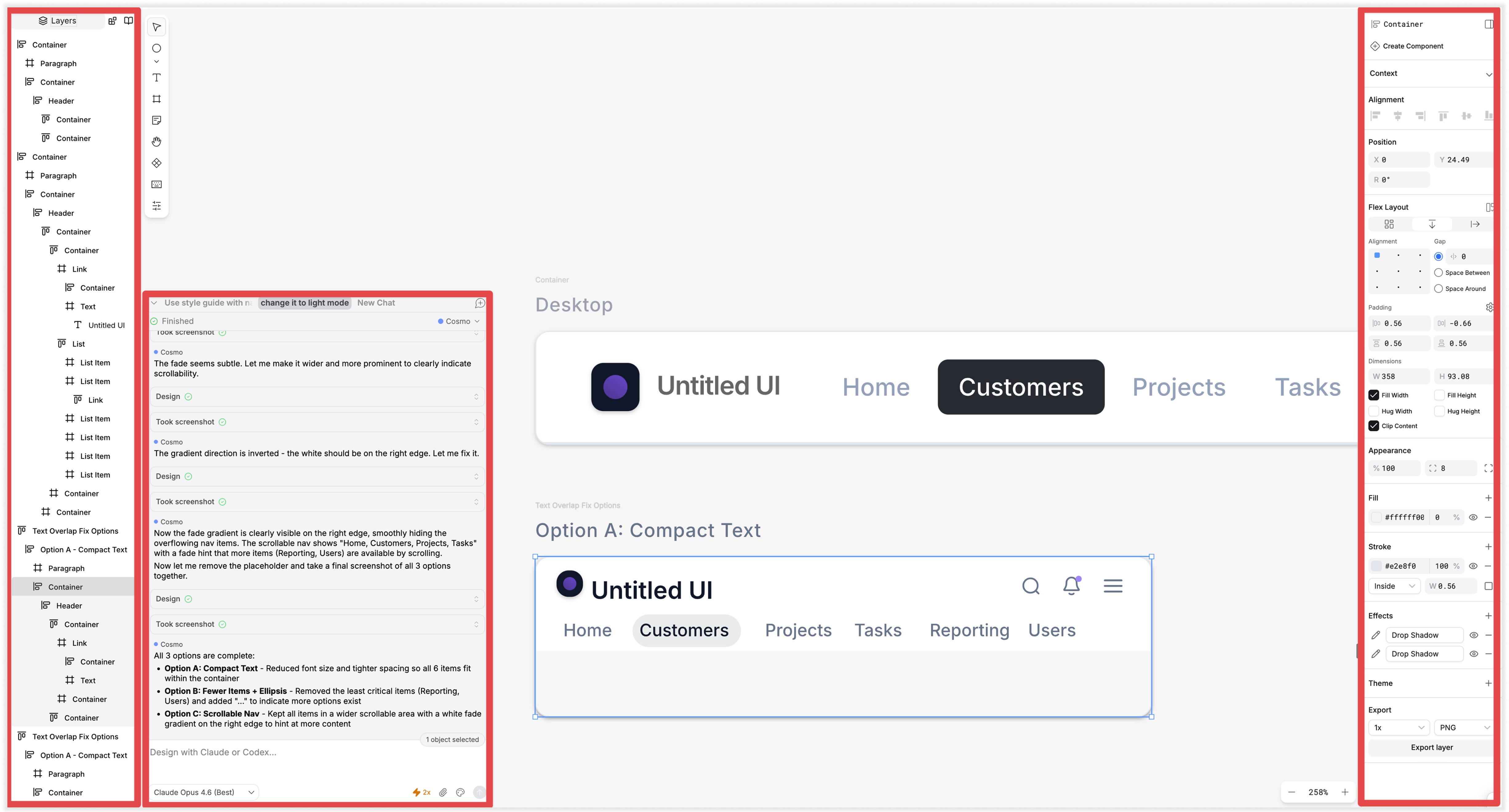
You can export layers, change colors, and adjust padding and alignment.
There’s also an intriguing separate panel for the AI agent. I have Claude Code run underneath. Pencil’s MCP experience is quite smooth, at least for Mac. It is easy to set up, then Claude Code can read the context of what’s placed on the canvas.
Cursor Extension’s Interface
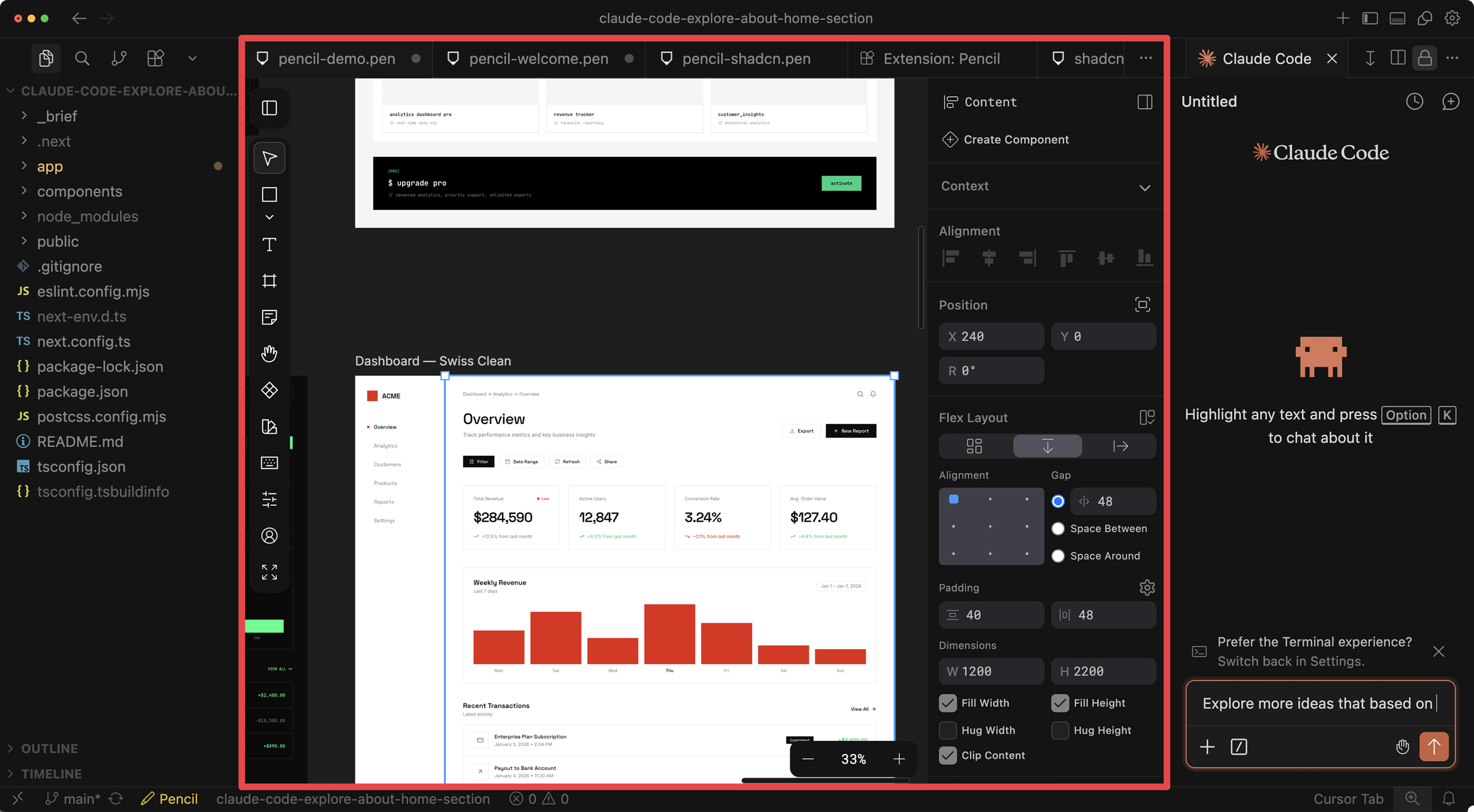
Pencil also offers a Cursor extension (similar to VS Code’s), allowing you to run its canvas interface directly inside Cursor.
Generate/Edit Design
The design on the left was generated with Pencil via prompting. I then asked for three variations, which appear on the right.
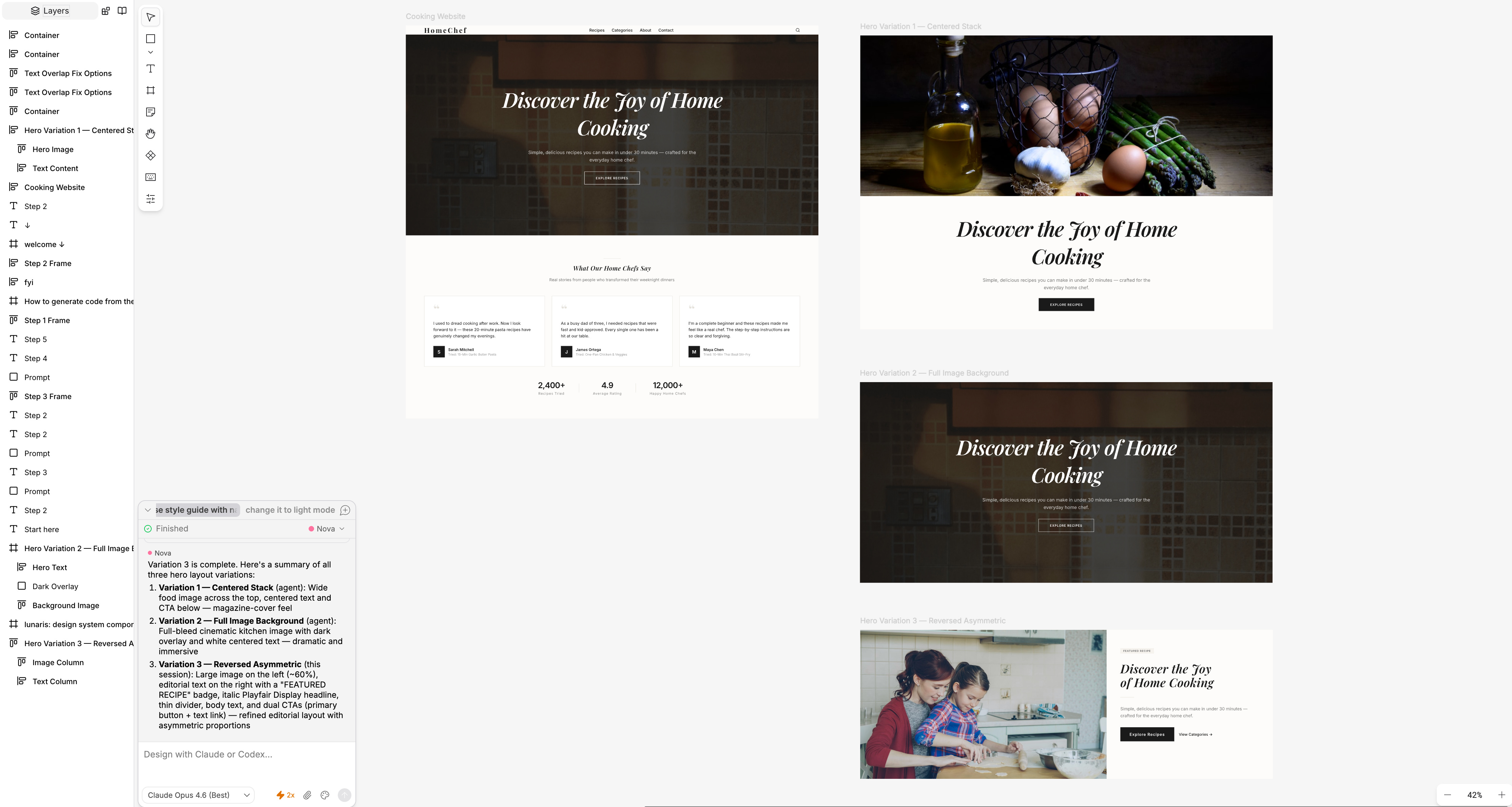
The experience was similar to using Cursor or Claude Code, but the visual canvas made it much easier to track designs.
Edit design
After the design is generated, the editing experience is very intuitive. I can drag and drop the components easily and choose to make detailed edits with the property panel on the right too.
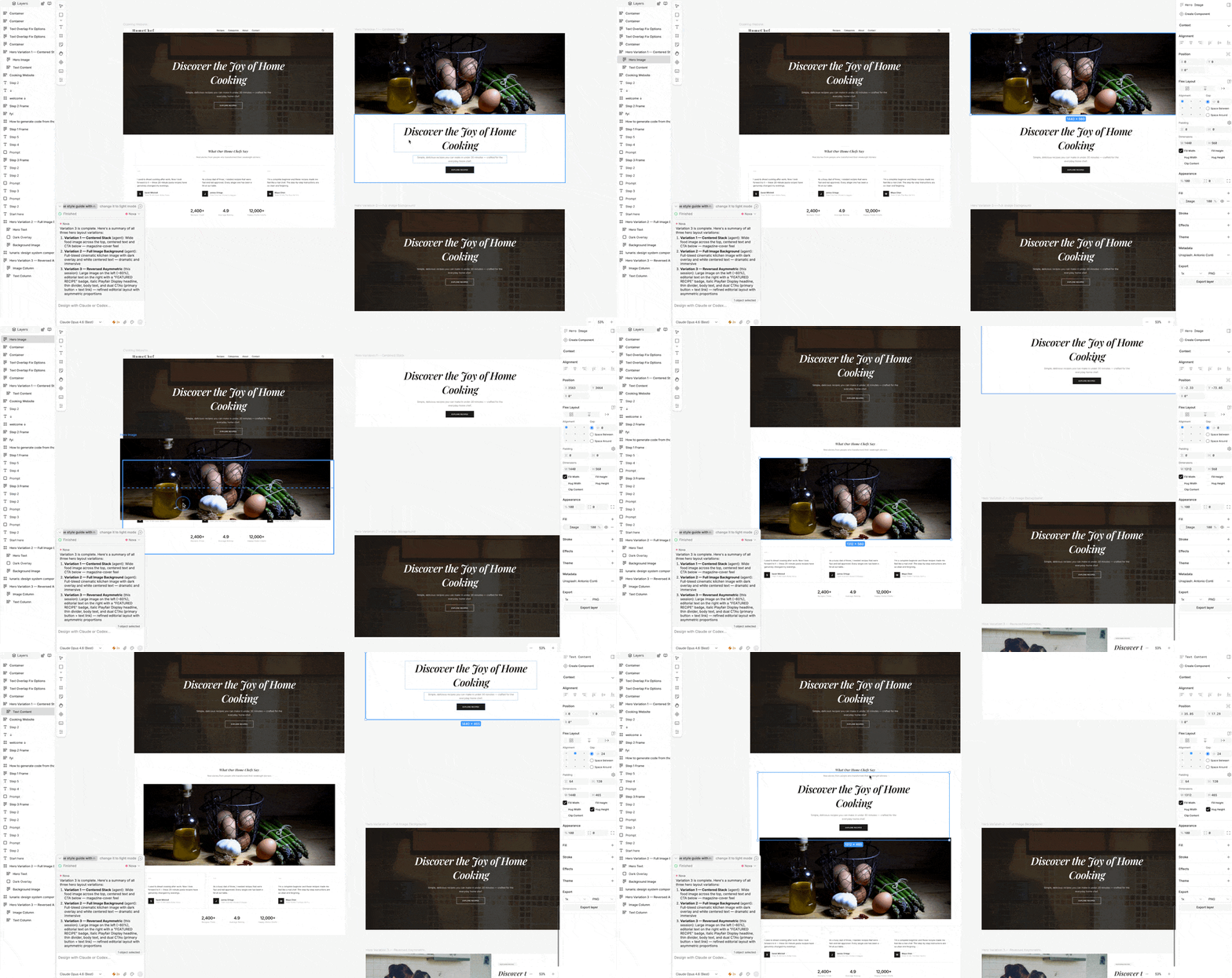
As amazing as it may seem, I want to point out that the design editing is not a two-way sync like in tools such as Lovable and V0.
For example, in Lovable or V0, you can select a component and make edits, and the code will automatically update to match. In contrast, in Pencil, although there’s more flexibility for manual design editing, you still need to prompt the AI agent to update the code after making changes.
Prompt Blocks
This feature is officially called “Sticky Note”.
It reminded me of Jambot in Figma and I wrote a detailed article about it a long time ago. It’s ironic that it was an innovate concept but no one talks about or uses it anymore.
Anyway, Pencil’s prompt block has one thing in common with Jambot that you can write your prompt on a sticky note that is placed on the canvas and run it.
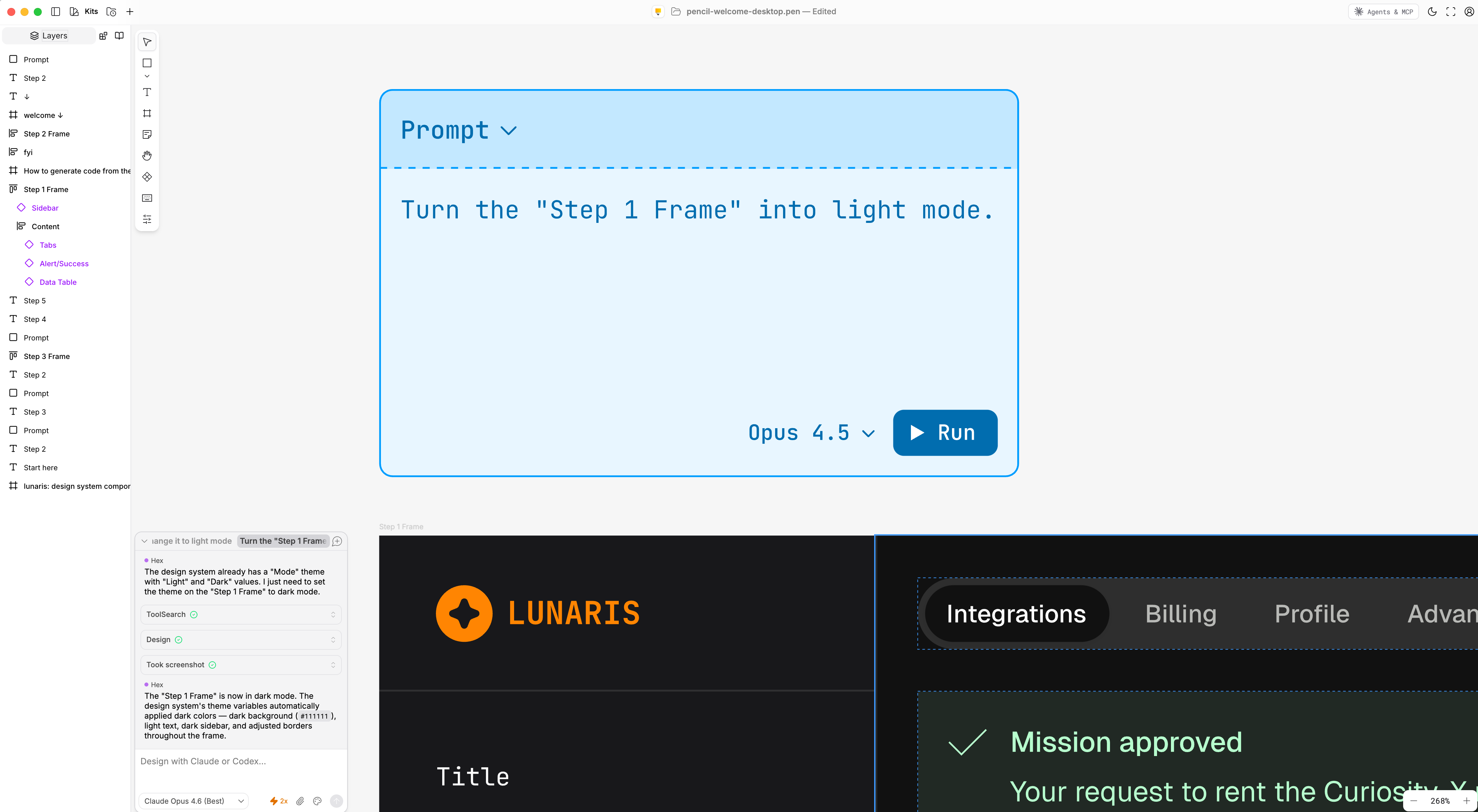
Here’s how it works:
You create a prompt block (sticky note) on the canvas.
You write your prompt inside it.
When you run the prompt, it will automatically run in the AI agent too.
I find this feature intriguing with three benefits:
You can include a blank canvas name in the prompt, so when you click the play icon on the sticky note, Pencil will generate a design inside that frame.
This makes it easier to keep track of your design iterations and the intentions behind them.
You, or someone else, can view the prompt, easily copy that block, paste it into another canvas, and run the same generation. So the prompts become a design artifact too vs. something transactional that only lives in a private chat history.
UI Kits
There are two types of “UI Kits” in Pencil, and they function differently.
