

🐴 Git Concepts for Beginners
Understand how git actually works without memorizing a single command

Upcoming Events:
🛠️ Workshop: Claude Code for Designers | July 2
🛠️ Workshop: Git and GitHub for Beginners | July 9
🏫 Course: AI for Product Designers | Aug 25 - Sep 4
One lesson I learned as a designer building with AI is that there’s a technical topic you can’t avoid: Git and GitHub.
It’s an essential part of the development workflow, and the moment you want to track a project, manage version control, publish your work, or collaborate with a team, there it is.
However, I’ve noticed three things:
Most of the Git tutorials online are created by engineers, for engineers.
While AI tools make it much easier to work with Git, whether it’s Claude Code, Cursor, or other coding assistants that can handle many Git tasks for you, you still need to understand the basics. Knowing the core concepts helps you communicate your intent to AI and understand what it’s doing on your behalf.
During the last Git workshop, I realized that some beginners struggle to build a mental model of Git’s core concepts.
That’s why I wanted to write this week’s newsletter. I’d like to walk through the basic Git concepts in simple, approachable terms with visuals. Hope you find it helpful.
Let’s get started.
What is Git? What is Github?
Git
If you’re working on a tiny, simple, personal project, Git might not feel very important to you. But if you’re working on more complex projects that require tracking progress or collaborating with others, version control quickly becomes very important.
Git is a tool that runs on your own computer. Its job is to track the history of a project: key changes, who made it, and when. It is a thoughtful system to keep your changes organized.
Git records history when you tell it to. It does not auto-save like Google Docs or Figma.
Note that some tools out there may wrap git and make it feel automatic, but under the hood, they just run those git commands for you.
Git is intentionally manual because you get better control of “recording” the meaningful checkpoints. You decide when “a snapshot” is taken and what to call it.
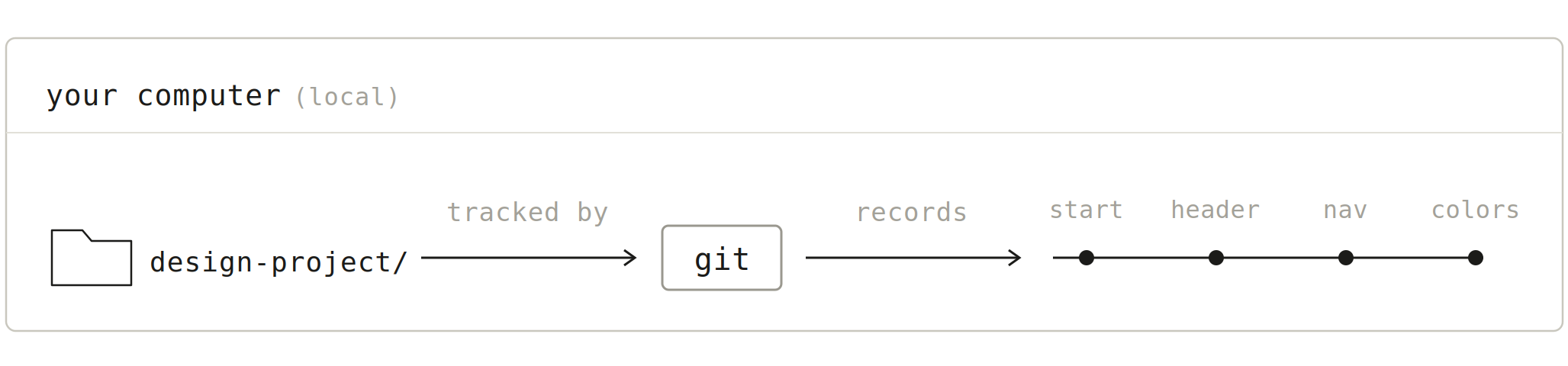
By the way, git is not guaranteed to already be installed. You usually need to install it once in your computer if you have never done it.
So how does Git keeps track of things then?
That leads to the next term in Git: Commit
Commit
At meaningful moments, you tell Git to commit. A commit is a “labeled” snapshot you save to your project's history.
Note that you are not duplicating those files with commit, you are just taking a snapshot to record those moments.
That snapshot is called a commit, and you attach a little label/note to it like “added the login button” to help you remember what changes you made.
Git remembers every snapshot forever, so you can scroll back through the history of the project and jump back to any earlier version.
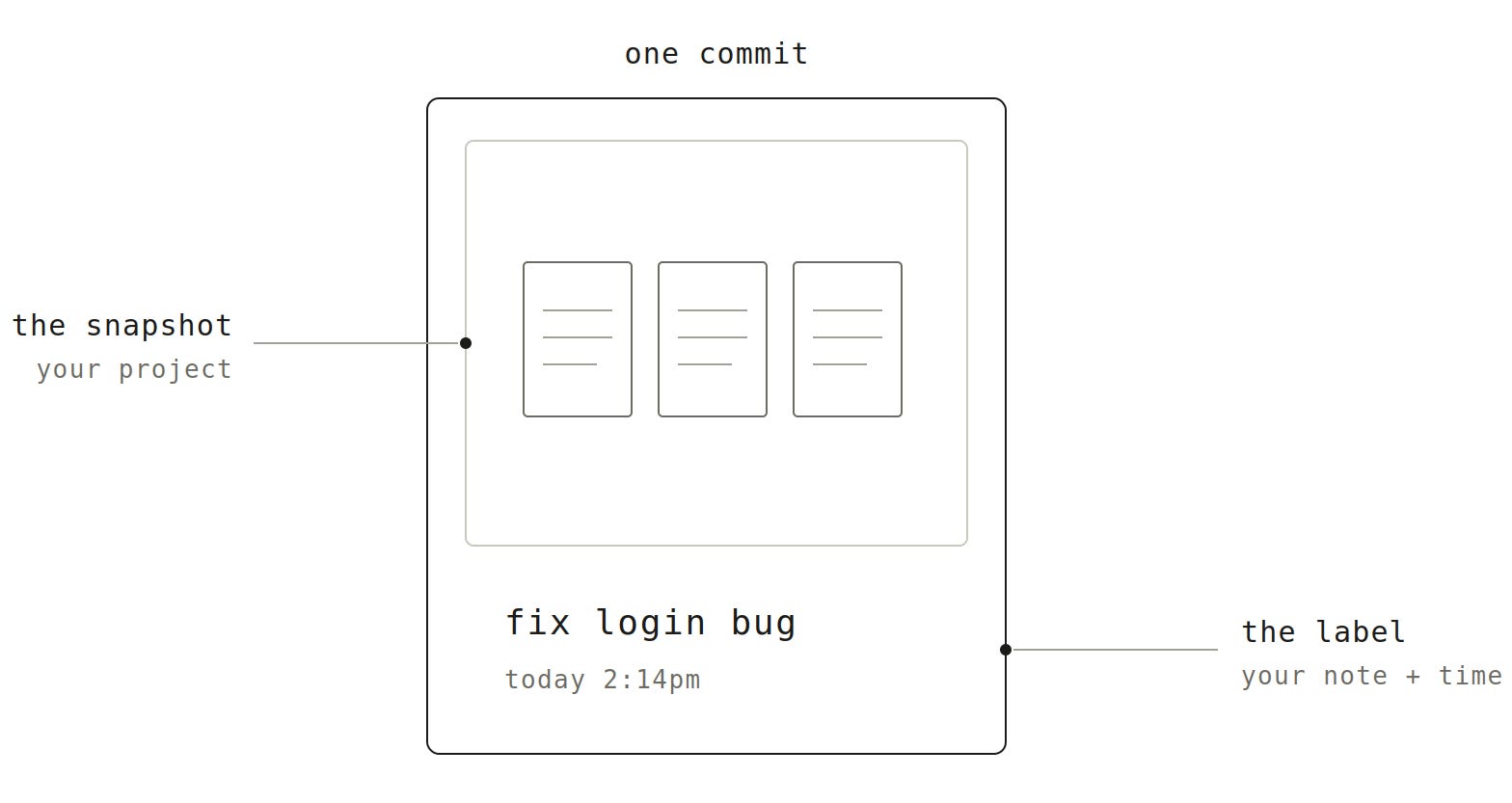
And AI tools can help you write those commit messages for you too, so you don’t have to always manually write those little notes by yourself.
This naturally leads to the next term: Repo
Repo (Repository)
So since Git tracks the whole project folder and everything inside it, that folder becomes special and “smarter”. So that folder, once Git is watching it, is called a repository (or "repo").
The folder not only holds a bunch of code files, but also records changes.
(When I was in standup meetings, listening devs sharing their updates, “Repo” was the most commonly heard tech term but I didn’t know what it meant so had to google it one day…)
Github
I’ve been talking about Git, which works in the local computer.
But what if your computer dies, and your teammates need to work on it?
GitHub is a separate website in the cloud that stores Git projects. So Git is the tool, while GitHub is the website.
Think of it as the “Google Drive for code”. It is like a central, online version of your Git history and your teammates’ Git history.
The connection between Git and Github is a manual step you trigger — “push” to send your snapshots up, “pull” to bring snapshots down.
I’ll explain more about Push and Pull later in this article.
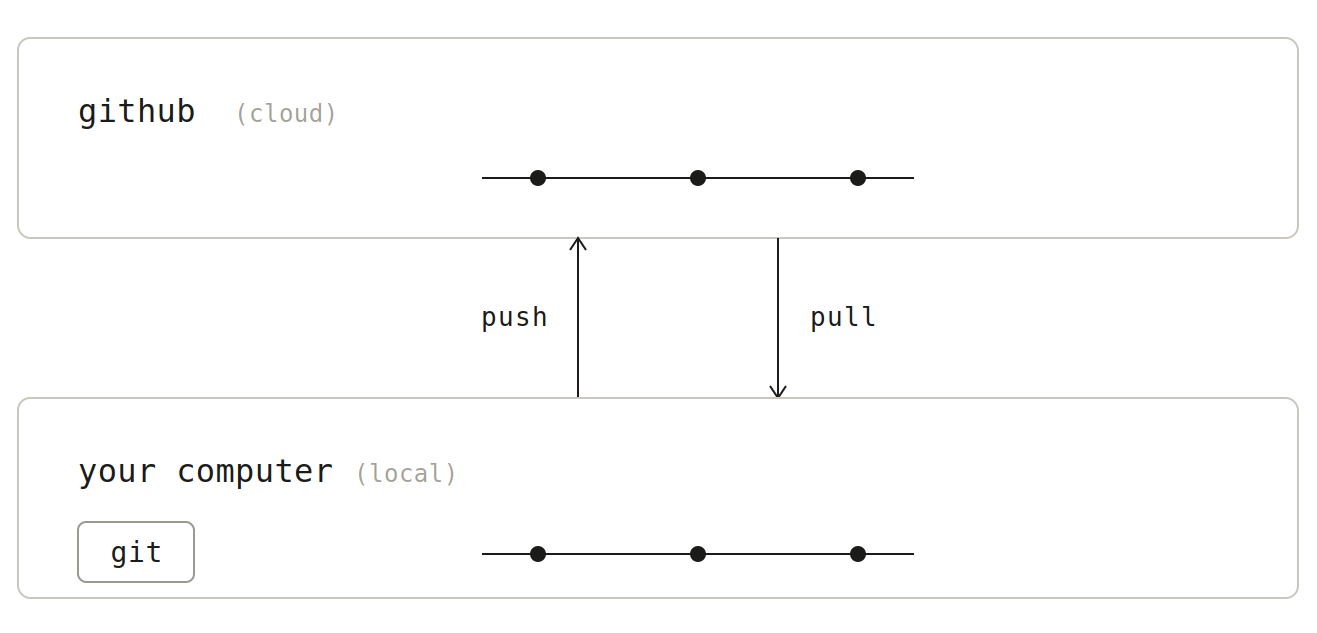
What is Branch?
Branch is an important concept of Git.
Imagine you have a Figma file “Homepage” that everyone agrees is the real, approved design of the homepage. Now you want to try a bold redesign. What would you do?
The first reaction would be duplicate the page, name it something like “Homepage - redesign explore,” and explore freely in the copy. The original stays untouched and safe. If the redesign turns out great, you bring those changes back into the real page. If it doesn’t turn out great, you just delete the copy and nothing was lost.
And this is the essence of what a branch is.
In Git terms, the main, official version of the project is called main.
Main is like the ultimate source of truth of the project code. Technically, you should never touch main.
A branch is a parallel line of work that splits off from it. It is your own safe space to make changes without affecting main. When your work is ready and good, you “merge” it back into main, so that main contains your work. In this way, it protects main.
Branch helps the whole team works at once without collisions. Let’s say, you’re on a “redesign-header” branch, a developer’s on a “fix-login” branch, someone else is on “new-checkout.” Everyone works in parallel on their own copy, then merges back one at a time. No one overwrites anyone.
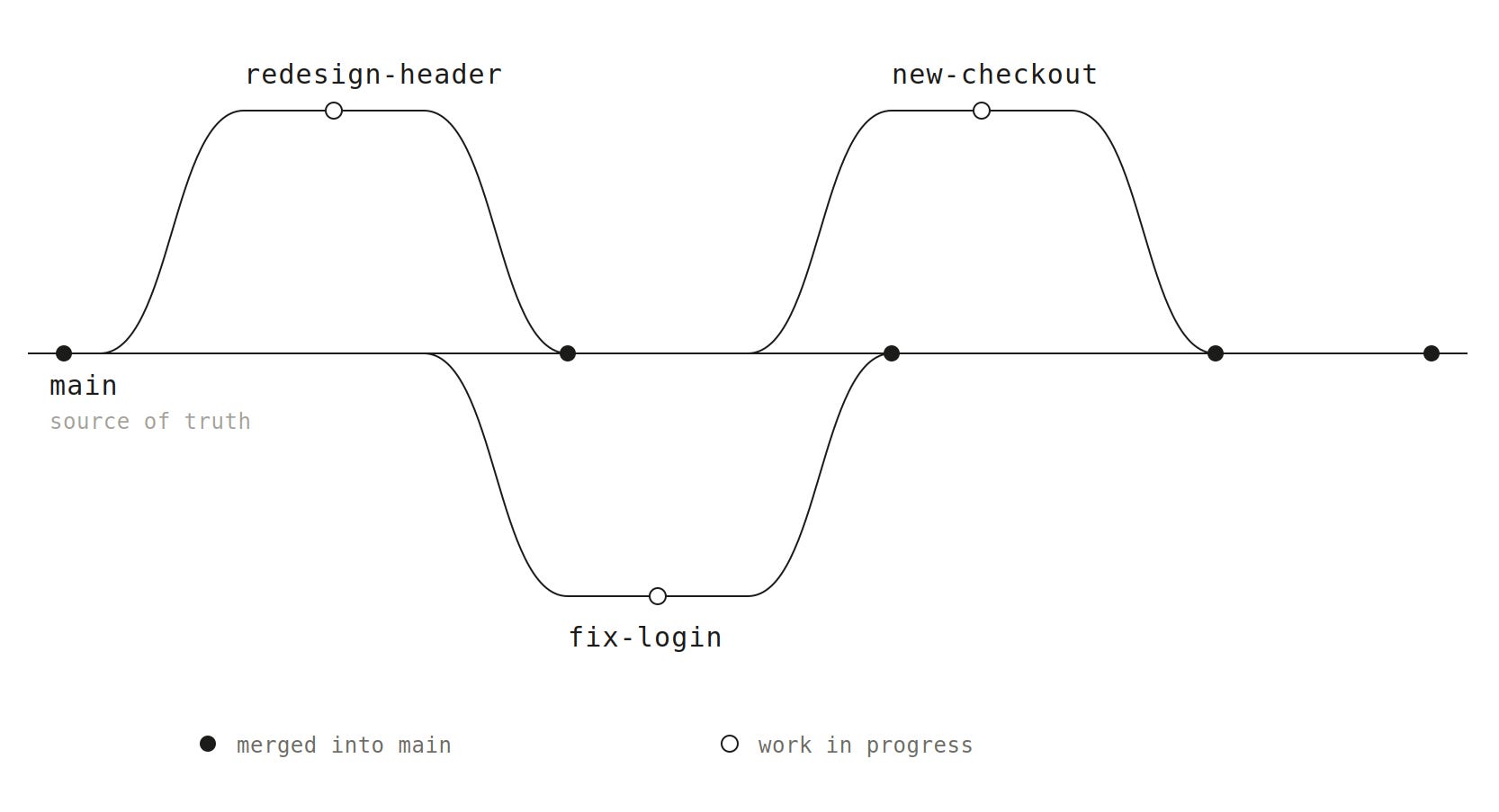
And since each branch is one focused task with a clear name, it’s obvious who’s working on what. It’s more organized.
What is PR?
“PR” is probably the second commonly mentioned term when I sit in a meeting with developers. “Open a PR”, “Submit a PR”, “Review a PR”, “Approve a PR”, etc. The first time I heard PR, I was like what is PR? Public Relations?!
PR means Pull Request.
It happens when you want to propose a merge.
Let’s say you are working on the redesign branch and now you want to merge it back into main. You usually don’t just do that merge silently and instantly. That would be like overwriting the team’s approved Figma file without showing anyone first.
Instead, you open a PR. It is a formal proposal that says “here’s the work I did on my branch, please look over my changes before it becomes part of main.” It opens up a dedicated page on GitHub where people can see exactly what changed, leave comments, ask questions, and approve it.
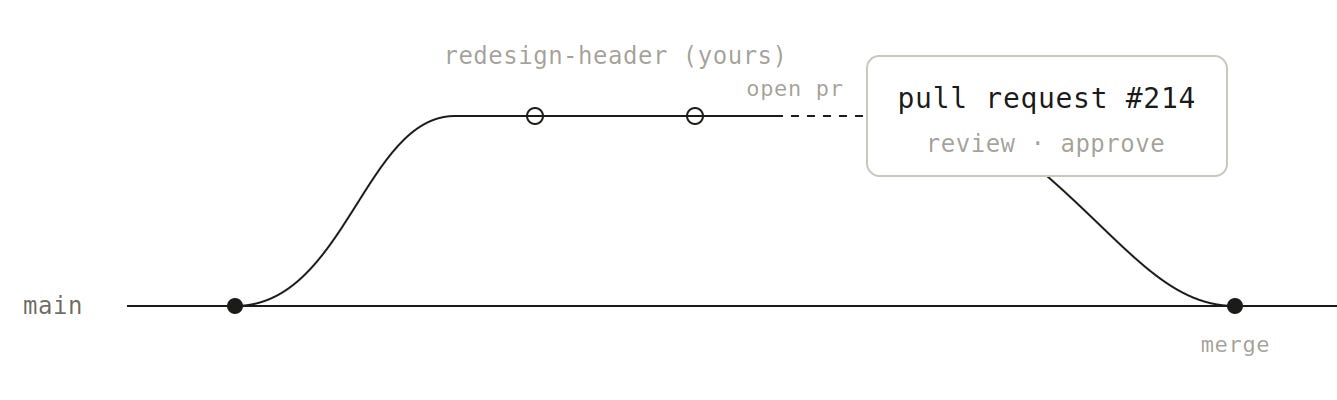
Only after that does the merge happen.
I have to say that the name PR (Pull Request) is kind of confusing. Because it is talking from the project perspective “pulling into the main”, rather than talking form your perspective “request for a merge”. By the way, it is also referred as Merge Request (MR) for some platforms. MR and PR mean the exact same thing. MR would have been a easier-to-understand term.
What are Push and Pull?
Push
It is a common confusion that Push is opening a PR. But it is not.
Opening a PR usually depends on a push. It means “Please compare my branch with main and consider merging it.”
But Push actually means uploading your work from your local computer to the cloud so other people can see.
So PR is more like a request or proposal, while a push is the actual upload of your code (along with the commit messages associate with it).
The confusion happens because many developers do the actions one after the other: Commit → Push → Open PR

Since they happen within seconds of each other, they can feel like a single step, but they’re technically and conceptually separate.
That said, when you use AI development tools like Claude Code, you can say something as simple as:
Push and open a PR.
Or for a better practice, at milestones, you say:
Summarize my changes and propose a commit message.
If the AI-written commit message looks good, you then say “Push and open a PR”.
(You can totally write the commit message yourself too, although AI-written ones are usually more thorough.)
Pull
You may notice pull is less often mentioned than Push. So what is Pull?
Let’s say I am working on my local branch and Tom is working on his branch. Tom made a change and opened a PR. The PR got approved and merged to main.
Your local branch is now based on an older version of main. Pull can let you catch up with the latest main.
So the most common scenario of using Pull is when you start new work: you want your new branch to start from the latest code the team already merged. You can say things like:
Switch to main, pull latest changes, then create a new branch named ___.
The second common scenario is when you want to open a PR. It’s helpful to catch up with any updates the team has made to the main.
What is Merge Conflict?
Sometimes, when you open a PR, there’s a conflict. You see there’s a notification on the PR saying something like "This branch has conflicts that must be resolved."
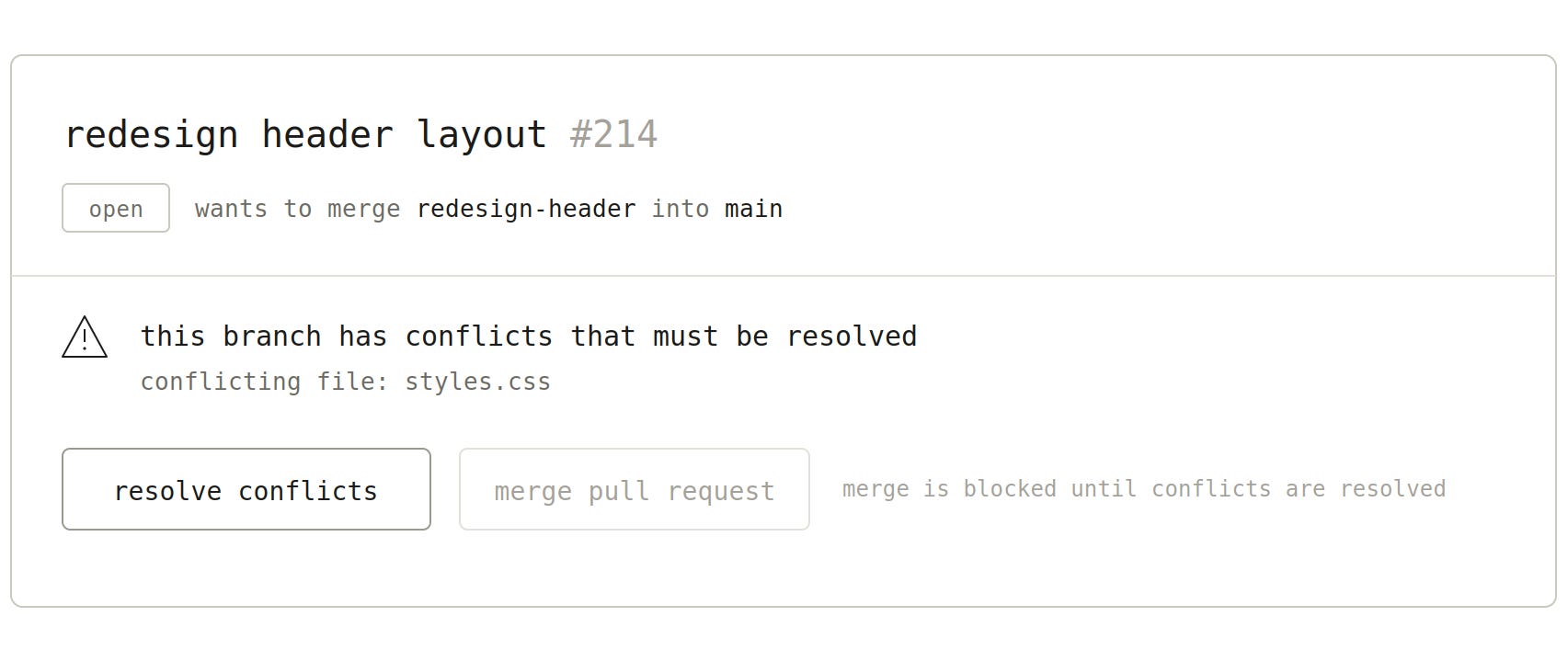
So merge conflict happens when two branches changed the exact same lines, in different ways. And that makes Git stuck.
If a conflict is unresolved, the merge is simply paused, not completed. Nothing has been overwritten or broken, Git is just waiting for you to make a decision.
For example, your teammate is working on the “add dark mode” branch, they opened a PR about a change on the style sheet. It gets approved by the tech lead and merged to main.
But you are working on the “redesign header” branch. Your “redesign header” branch and a teammate’s “add dark mode” branch propose the same change.
Meanwhile, your redesign-header branch is still sitting on the old copy of the stylesheet, which is the version from before dark mode existed. You’ve been editing those same lines on your side. So the two versions of those lines now disagree:
mainsays: the stylesheet with dark mode’s changesyour branch says: the stylesheet with your header’s changes
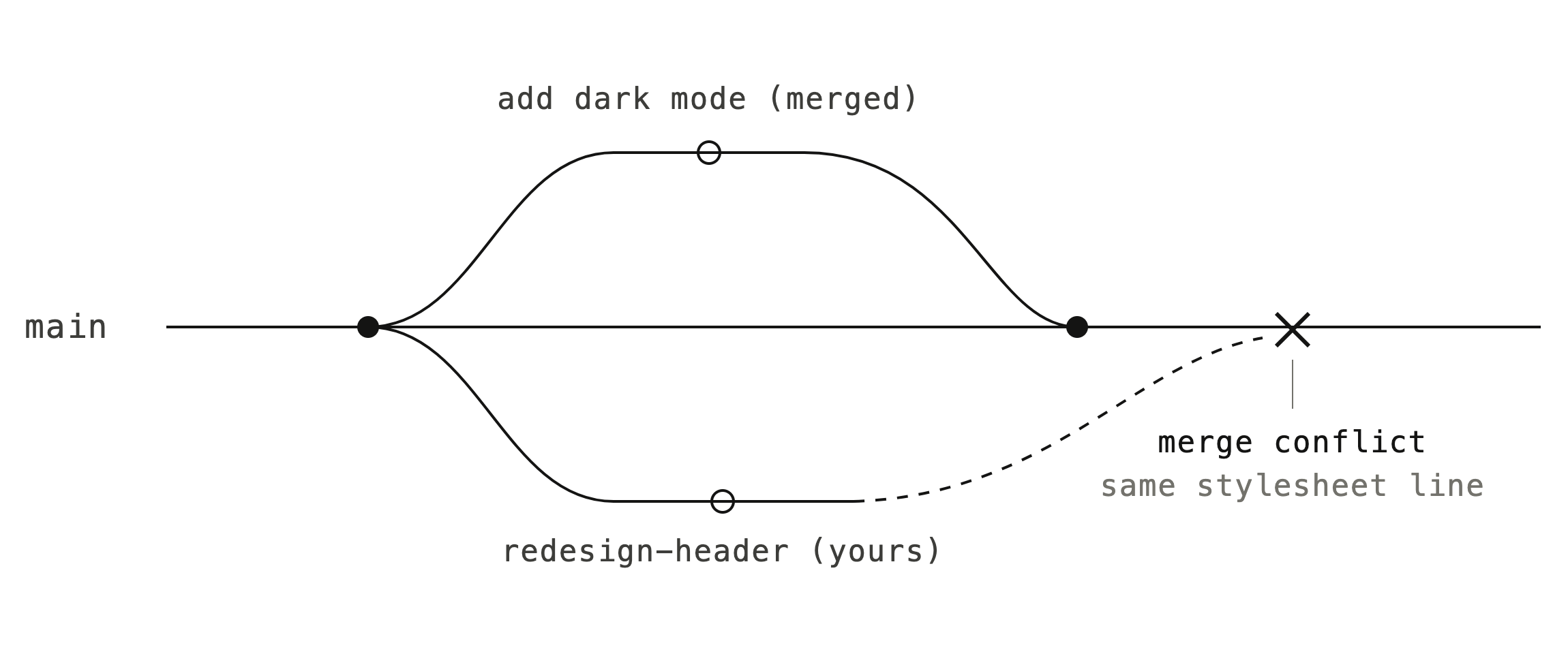
So you need to make a decision to get your changes merged, whether it’s to make a compromise to keep both, or keep your version instead, or keep the main version instead, or write something new.
Merge Conflicts tend to be small and rare when your and your teammates merge often and work on different areas. But if you all have not merged for a long time, or a branch sits untouched for a long time, then Merge Conflicts become more often. That’s why it’s a good practice for everyone to merge often.
(In my previous career as an architect, I used a design software called Revit daily. It’s fascinating to see how similar the concepts of version control and team collaboration are across tools in different industries. For example, “sync” in Revit is like “push and pull” in Git, and “sync conflicts” are like merge conflicts in Git. It may be easier for you too if you have experienced a similar mental model in other tools.)
That’s it for this week.
See you next time.
Xinran
-
P.S. What I ate while writing this newsletter:
I recently wrote this repo https://pdkaizer.github.io/github-for-designers/
This visual makes Git branching so much easier to understand. Great resource for anyone just starting.