Got a question during my course: What are the most common Claude Code commands for someone new to Claude Code?
I have a newsletter draft on this topic dating back to last October, but never got published. Looking back, some commands I think are worth sharing for beginners have shifted too. There are also many commands others like to use that I don’t, so the list I’ll share today is subjective.
Today, I’ll walk through 14 commonly used commands with how to use them and when to use them.
Let’s dive in.
Part 1: Think before you build
Shift+Tab
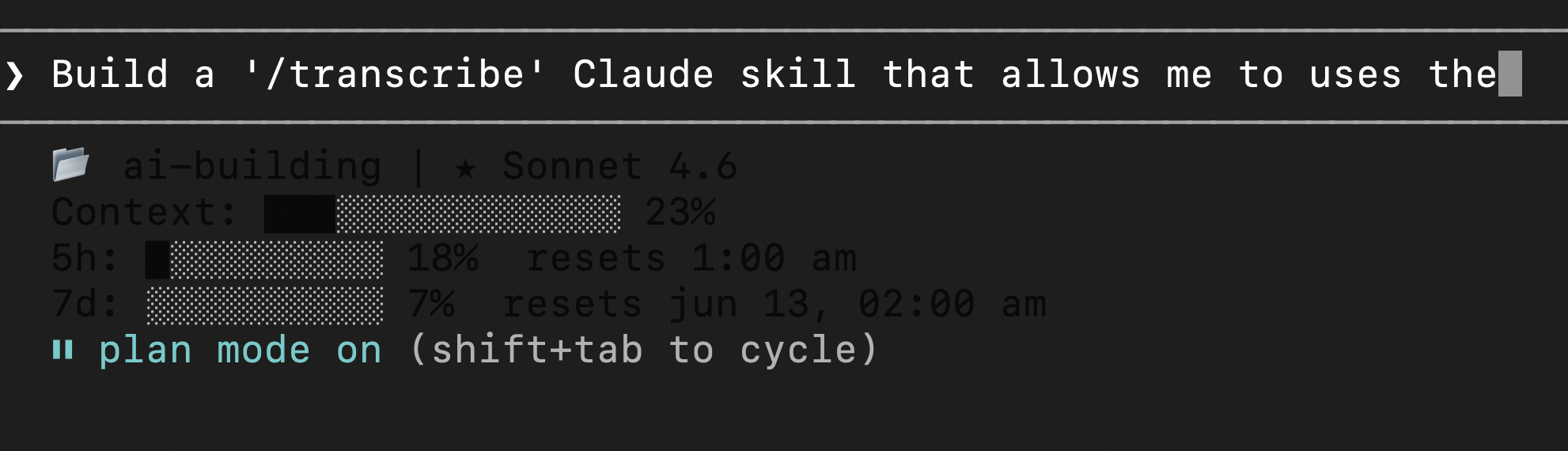
Shift+Tab gives you access to Plan mode.
It’s probably my most used command. When Plan mode is on, Claude reads your prompt, thinks, and proposes a plan, but doesn’t touch a file until you approve. You get to read the plan, ask for revisions ifneeded (which I often do), and then let it build.
The scenario: I use it very often, especially before I am about to build a complex task. It helps Claude Code think carefully before executing. For example, if I need to convert a screen from Figma to Claude Code via Figma MCP, I would use Plan mode. I tested it a few times, Plan mode vs. not, and using it almost always gets me a better result, even if I don’t ask for changing anything about the plan after reviewing it.
How to use it: Press Shift+Tab to cycle through Claude Code’s modes. Keep tapping until you see “plan mode” in the bottom corner. Or skip the cycling entirely and just type /plan followed by what you want, such as /plan add a dark mode toggle to the settings page.
Part 2: Typing and talking to Claude
Ctrl+V
Ctrl+V for pasting an image.
It’s counterintuitive because it’s Ctrl+V, not Command+V, and this is on Mac. (Alt+V on Windows.)
The scenario: I use it a lot, especially when I need to paste an image (or multiple images) into Claude Code for reference.
How to use it: My favorite usage is to use Command+Shift+Control+4 on Mac to copy a selected portion of my screen and Ctrl + V into Claude Code. It’s often quick, easy, and helps AI understand vs. mere text.
You can also drag an image (or multiple images) into Claude Code’s interface instead.
Ctrl+U
Ctrl+U deletes a whole line.
The scenario: I’d typed a sentence of a prompt and realized I was asking for the wrong thing. The first reaction is to press Delete on my keyboard and watch characters die one by one. But that’s too slow. Not to mention the command line in Claude Code is not like Google doc where you can select a line of text using your cursor and delete it. It doesn’t work that way.
How it works: Ctrl+U wipes everything from your cursor back to the start of the line in one stroke.
How to use it: Press Ctrl+U to clear the line where the cursor is at.
Option+Enter
Option+Enter creates a new line.
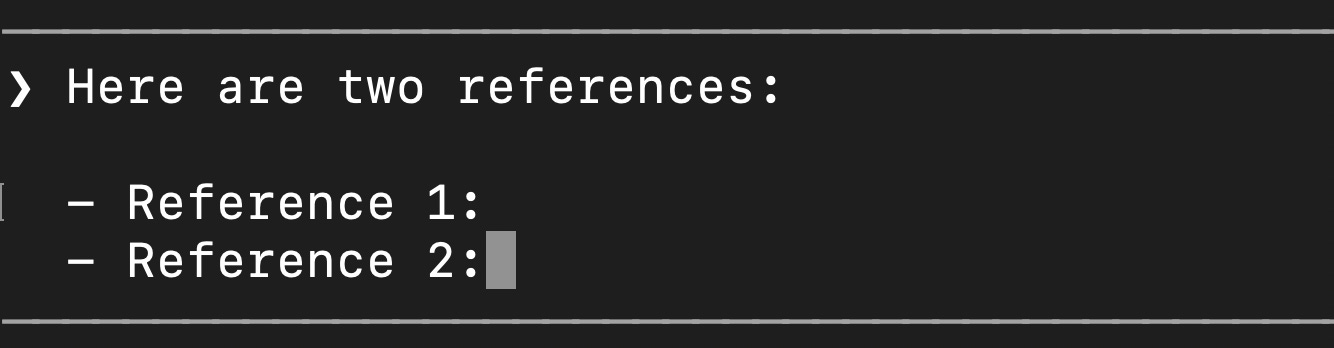
The scenario: This comes up whenever I want to write a new line in a prompt. For example, I wanted to say something like:
I wanted to start “Reference 1 is ___” on a new line for formatting. But sometimes I’d subconsciously press Shift+Enter and realize that had submitted my prompt! So, lesson learned: it’s Option+Enter that creates a new line in Claude Code.
How it works: It inserts a line break without sending, so you can structure your prompts better. And well-formatted prompts are easy to read and often get better results.
How to use it: Press Option+Enter to add a new line in Claude Code’s command line.
Part 3: Managing your session
/clear
/clear freshens up the context window of the session.
The scenario: When you want to switch tasks, especially if you’ve been working in a Claude Code session for a while and now want to move to a new task, it’s a good time to use /clear to clear out the context.
How it works: Claude has a limited “context window” (its working memory), and a long conversation makes it slower, more expensive, and more confused. /clear gives it a blank slate. Reassuringly, the old conversation isn’t deleted, you can get back to it with /resume.
How to use it: Type /clear when the current context gets heavy and get a fresh start.
/compact
/compact shrinks the context window by summarizing/consolidating the session conversation. I see it as the brother of /clear :)
The scenario: You’re deep into a long task with lots of file reads, edits, and debugging back-and-forth, and the context is getting heavy, but you’re not done yet. This is when /compact is a good choice.
How it works: Claude Code takes the entire current conversation history, creates a summary of it, then starts fresh with that summary preloaded as the new context. Claude Code also does this automatically as you near the limit, though I wouldn’t suggest to wait for that to happen, because by then your context is already very heavy.
How to use it: Type /compact when things start feeling sluggish, or when the context is filling up but you want to keep working on the same task. You can also give it a focus, like /compact focus on the auth bug fix.
/model
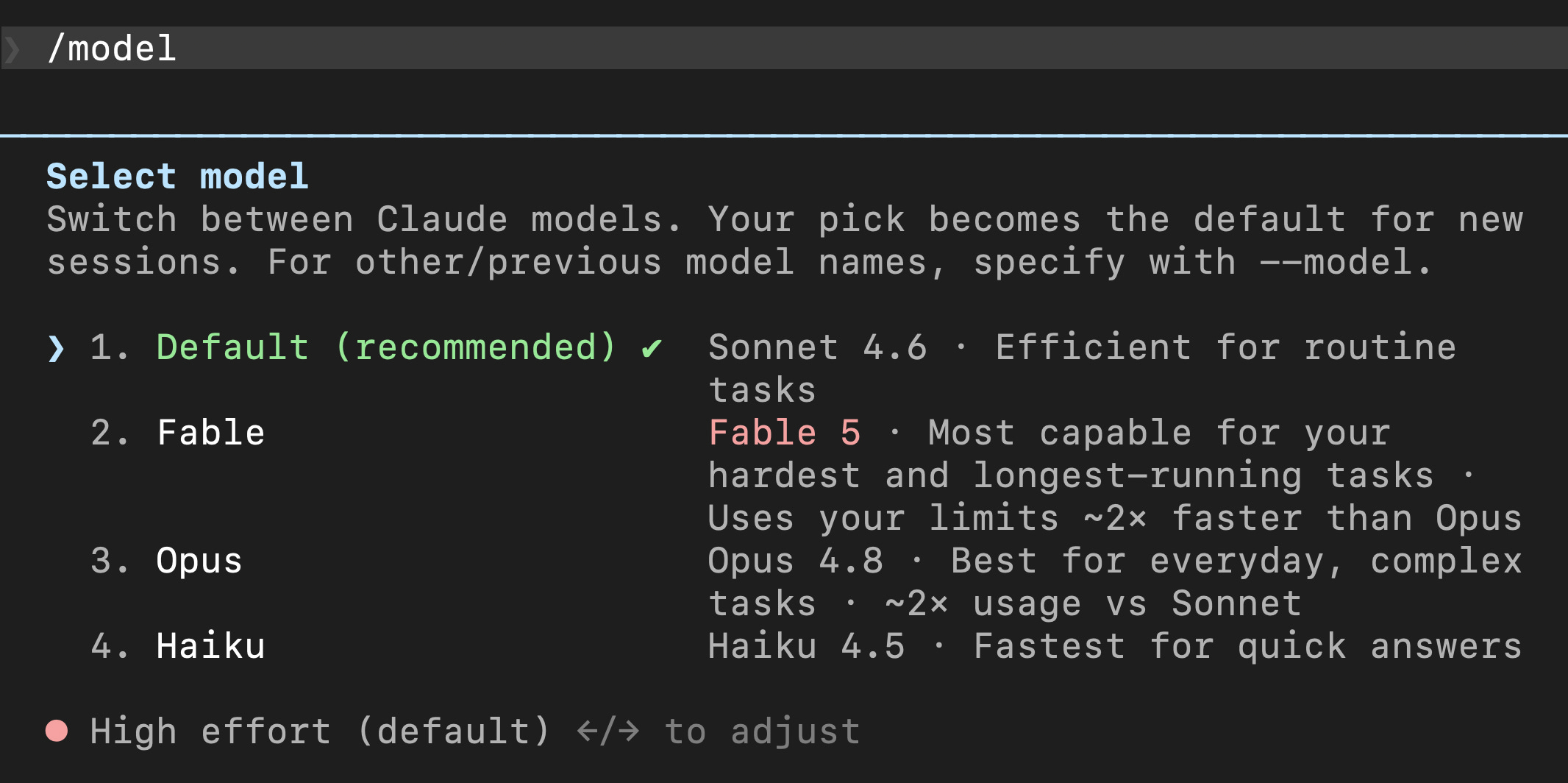
/model for switching to another Claude model.
The scenario: As I use Claude Code more and more, I’ve become more conscious of token usage. Instead of using the most intelligent model all the time, I use Sonnet 4.6 for tasks where I have more tolerance for the output quality.
For example, I’d use Opus 4.8 for planning a complex task, because I want Claude Code to think through ambiguity and come up with a solid plan to execute. But if I’m using Claude Code to implement a build, organize files, manage GitHub, and so on, I don’t necessarily need the smartest model with extended thinking.
How it works: Some models are smarter but slower, and use up your plan limits faster. Sonnet 4.6 isn’t as smart as the Opus series, but I still find myself switching to it when I need to. Smarter enough for many tasks.
How to use it: Type /model and pick from the menu. You can also switch mid-session when the task changes weight. And yes, Fable is out now... It reminded me of the seasonal drinks of the Starbucks downstairs, before I’ve decided whether I like it, the next one is already out.
/mcp
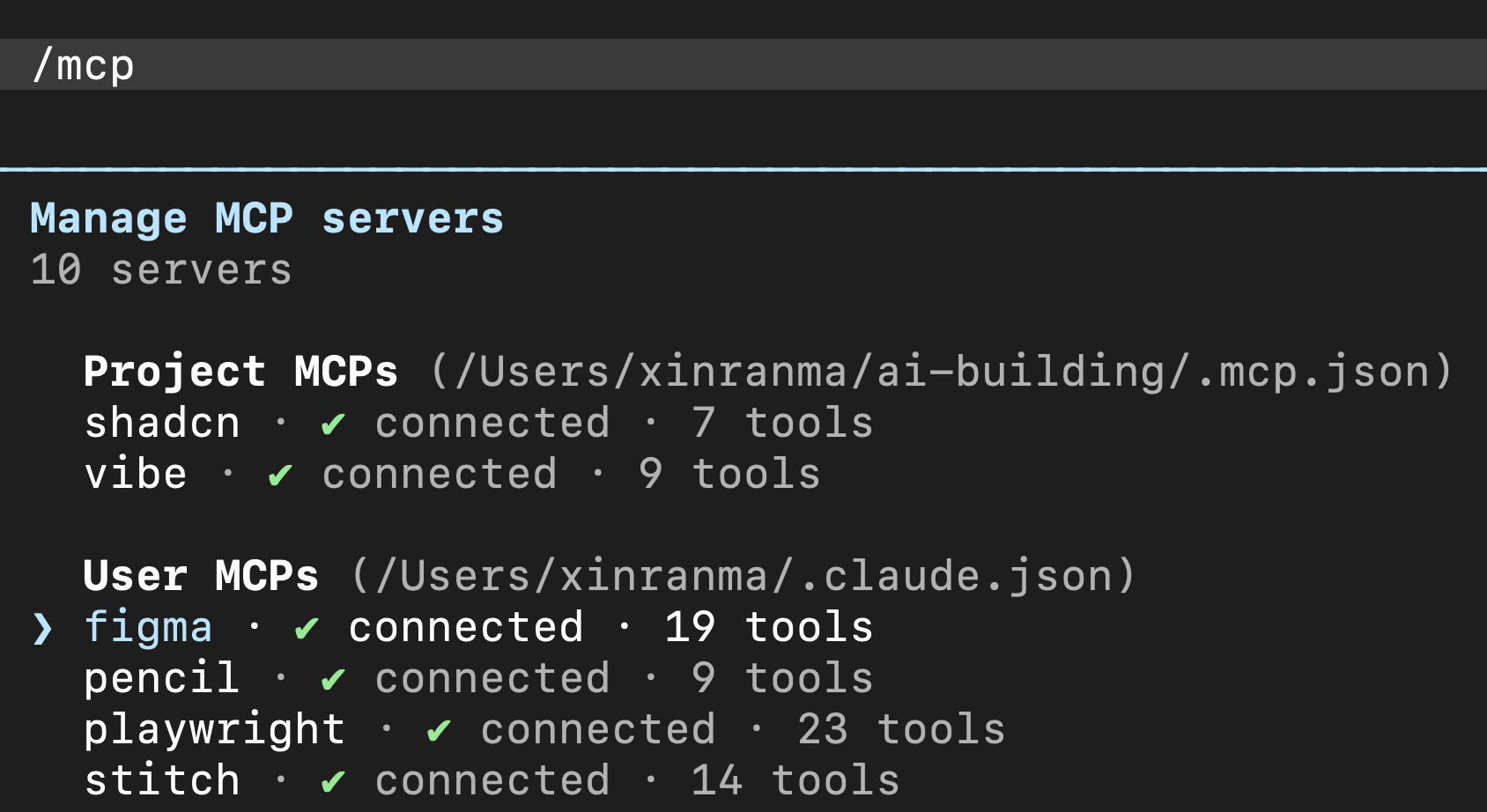
/mcp to check the MCP status.
The scenario: Once in a while, when I’m about to use an MCP feature, I want to check whether it’s connected without errors. For example, before I convert a Figma design in Claude Code and let it run, I like to use /mcp to double-check the status.
How it works: MCP is how Claude Code connects to outside tools. /mcp shows you all the MCPs you’ve connected before and whether they’re still connected. When one is connected (set up successfully), Claude Code can see information and pull data from that tool to better perform a task.
How to use it: Type /mcp. If you don’t see the one you are looking for shows up connected, you can ask Claude Code to diagnose and fix it. Sometimes you need to exit Claude Code and re-enter.
/skills
/skills shows the skills available on your computer.
The scenario: When you want to check which skills you have set up on your computer, because it gets harder to keep track of all of them. /skills shows you a list of skills with information about each one.
How it works: Skills are reusable playbooks, just like recipes. Once loaded, Claude Code can invoke them automatically when relevant, although you’ll often need to invoke one manually, explicitly saying things like “use the xxx skill,” or using a slash command if you’ve set one up a shortcut for convenience which I often do.
How to use it: Type /skills to browse what’s available in your project.
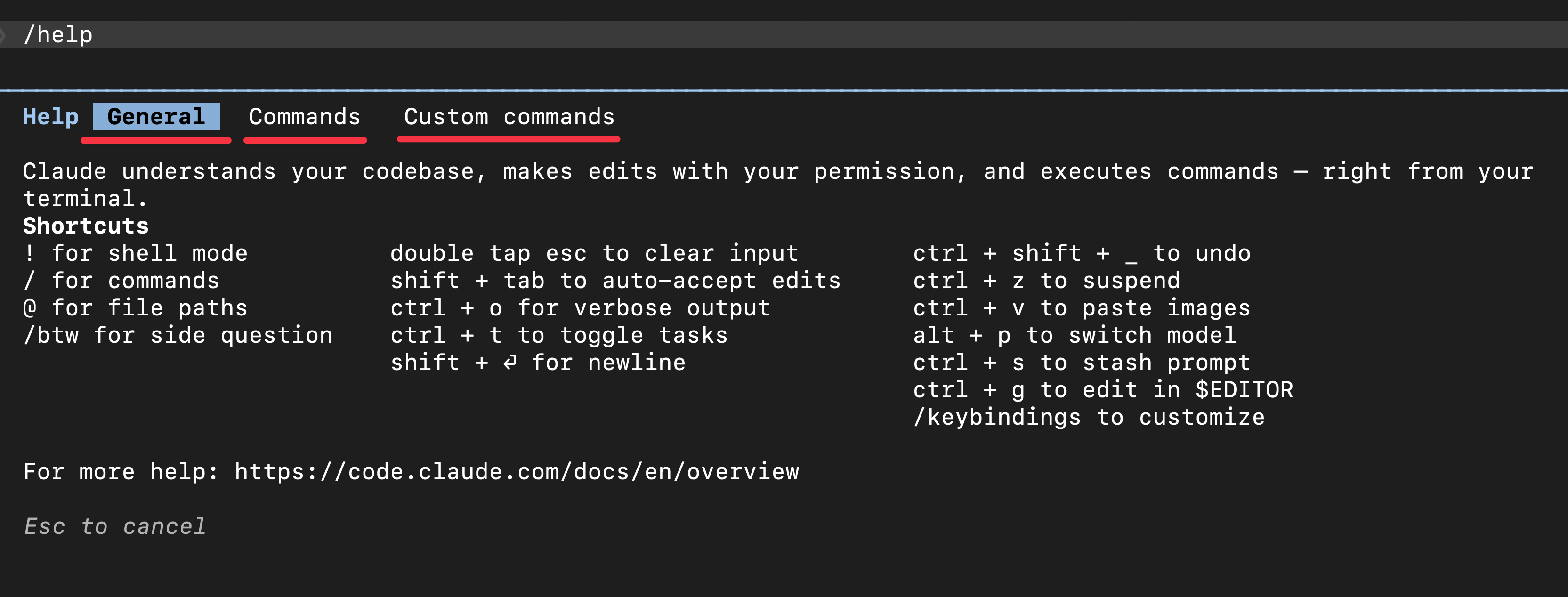
/help
/help shows an in-app cheat sheet of Claude Code’s default commands, plus the commands you’ve customized if any.
The scenario: When I forget certain commands and want to look them up.
How it works: Claude Code has the cheat sheet built in, so you don’t have to memorize anything, just use /help to check the menu.
How to use it: Type /help and hit Enter to see what’s available in your session.
Part 4: Project setup and recovery
/init
/init sets up a “brain,” or documentation, for your project, so Claude Code always references those instructions in your sessions.
The scenario: Let’s say, every session for a project, I found myself re-explaining the same things: “we use Tailwind CSS, follow the existing button patterns…” Instead, I can put these instructions in CLAUDE.md.
How it works: /init makes Claude Claude explore the codebase and write a CLAUDE.md file. It is a project briefing that reads automatically at the start of every future session. One caveat: keep CLAUDE.md very lean, with only the essential information, because it eats into your context and burns tokens quickly as Claude Code reads it in every session.
How to use it: Run /init the first time you open Claude Code in a project. It’s a quick process, and you run it only once. And after you’ve made a lot of changes, just tell Claude Code to analyze the conversation or codebase again, summarize the most important instructions, review them, and update CLAUDE.md accordingly.
/rewind
/rewind undos a bad turn.
The scenario: I was doing design iterations on the Substack Note app I’d built, and I realized I wanted to revert to an earlier point. I could just use /rewind to see the conversation checkpoints, and go back to one.
How it works: Claude Code quietly checkpoints as it works, so you can roll back to an earlier point: the conversation, the code changes, or both.
How to use it: Type /rewind, or press Esc twice, then choose the checkpoint to restore.
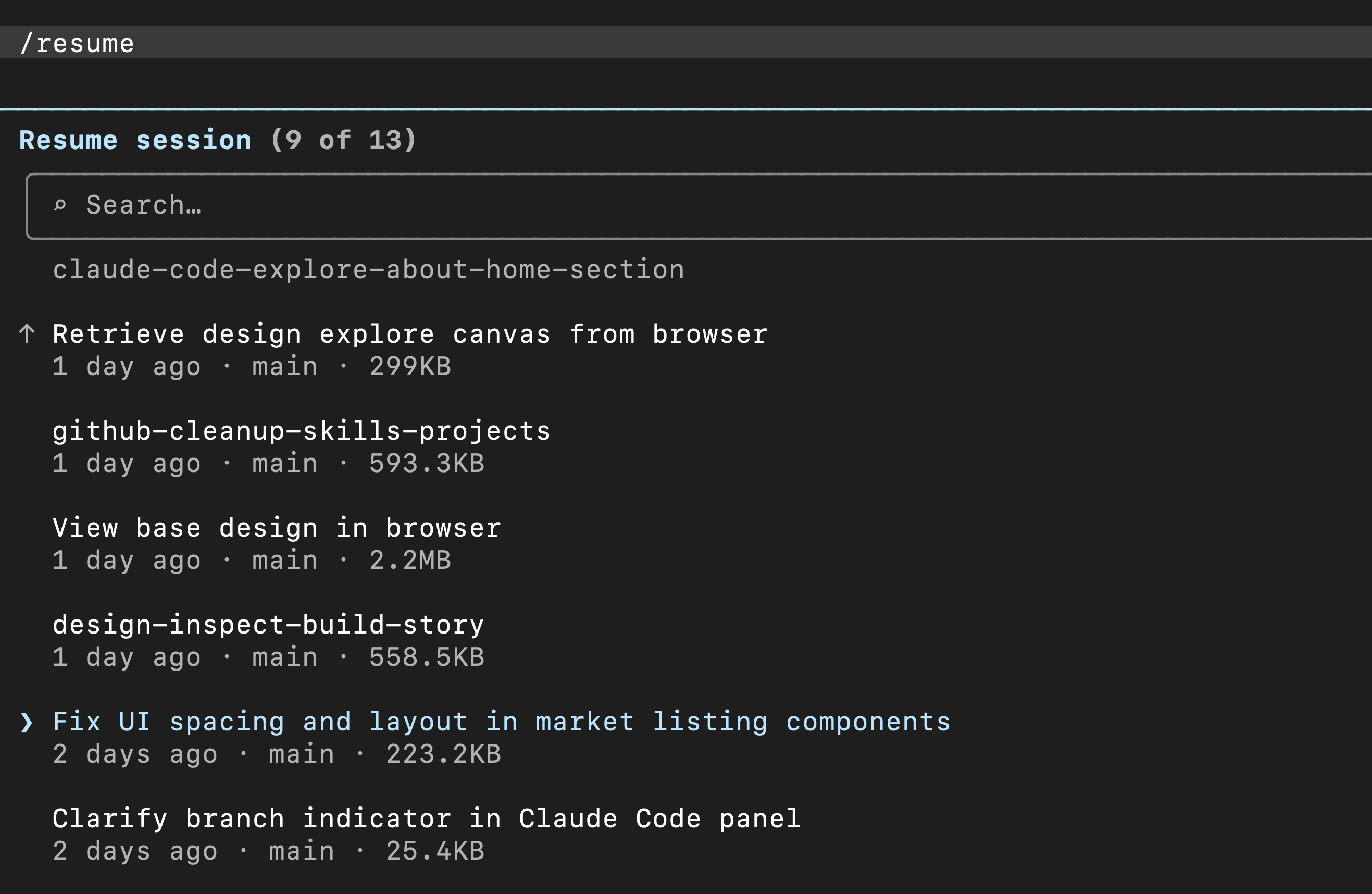
/resume
/resume for picking up a conversation you left off.
The scenario: Let’s say I worked hard during the week, and took time off during the weekend, and want to pick things up at where I left off on Monday opening Claude Code again. I can use /resume to view my recent conversations with Claude Code and select one to continue.
How it works: When you type /resume, it reopens that file and reloads the history back into Claude’s context, so Claude picks up exactly where you left off.
How to use it: Type /resume and pick the session from the list. There is another similar command /continue that I use often, which is a simplified version of /resume, automatically loading the most recent conversation.
There is a common confusion between /Rewind, /Resume, /Continue, and Git for version control. Because all sound similar, helping you to go back to a checkpoint in the past. So I want to explain more here.
/resume → When you open Claude Code in a fresh session, you can pull up the version history for that project. It opens up a file with your chats and context, so Claude remembers what you were discussing. You cannot bring back the code with /resume though. Your code just sits on disk in whatever state you last left it.
/continue → The no-picking version of /resume. Instead of showing a list to choose from, it opens the most recent chat for that project automatically.
/rewind → When you open Claude Code in a fresh session, there's nothing to rewind. When you already have had conversations in a session, then you can go back in time and choose to roll back both the chat and code at that time.
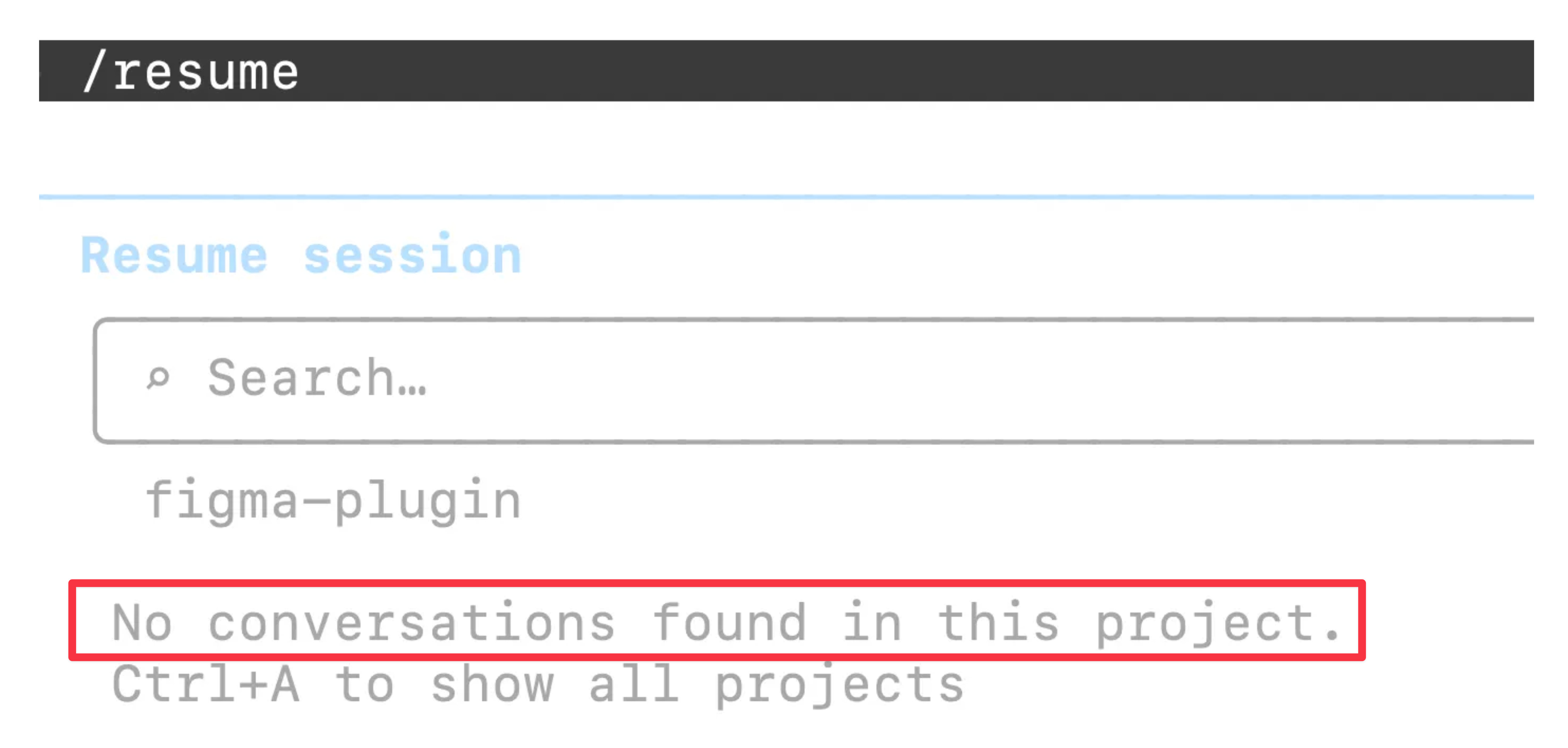
git → All the commands above cannot replace git for version control. Claude Code may remember your chats and code checkpoints for like a month, but beyond that, they can get cleaned up. For example, see the snapshot below. It’s a Claude Code project I worked on last October. When I reopened it and typed /resume, it remembered nothing. So /resume and /rewind are convenient temporary tools for working with Claude day-to-day, while git is the permanent, reliable, robust version control that isn’t tied to Claude Code.
(I’ll write about git, common git commands, and GitHub another time.)
/exit
/exit exits Claude Code.
The scenario: I’ve just set certain things up in Claude Code, let’s say, installing a package, and I need to leave and re-enter so the update can take effect in my session. Or I want to exit to do some tasks in the terminal app (you can also do so by opening a new terminal window, without exiting).
How it works: When you run /exit, Claude Code terminates that session and drops you back to your normal terminal prompt.
How to use it: Type /exit. Claude Code gives you a goodbye message.
That’s it for this week.
If you are a total beginner in Claude Code, and remember nothing else but three commands, that would be:
Shift+Tab into plan mode, review the plan before Claude Code builds
Ctrl+V: paste screenshots into Claude Code for references
/clear: when the context gets crowded and you want to switch to a new task
See you next time.
Xinran
-
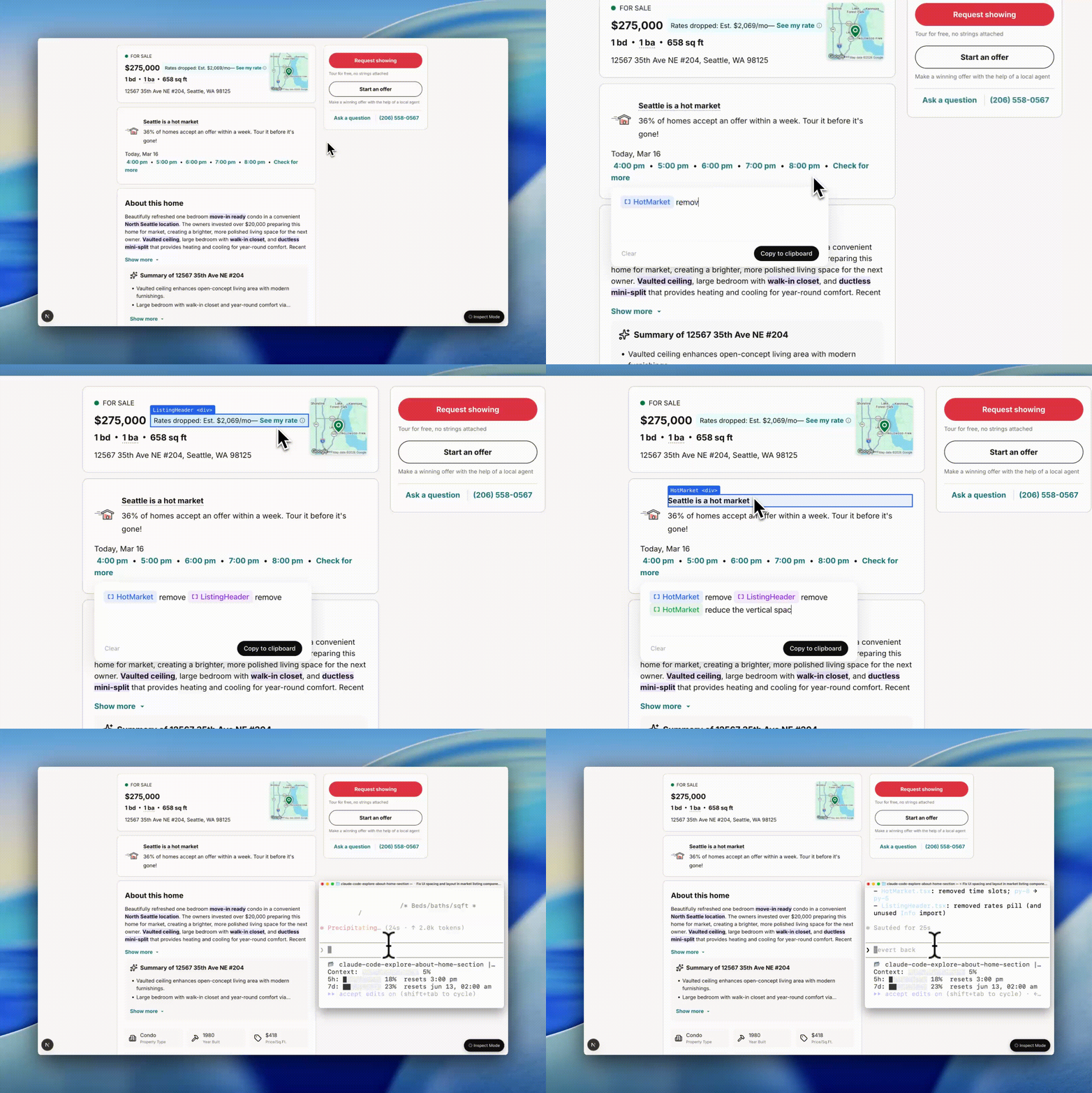
P.S. I built a Claude Code design tool that can select elements in the browser, describe desired changes, then execute the update directly in Claude Code. More to come, stay tuned.
Practical articles every week to help you design better, faster, and smarter with AI. Join 43K+ subscribers from Google, Amazon, and more.
Commands are only half the story. The real unlock is when you start hacking the tool itself to fit your workflow, not the other way around. I wrote about bending Claude to do things it wasn't designed for: https://imphan.substack.com/p/nova-and-claude-i-used-ai-to-hack-ai



I really needed that thank you!
Commands are only half the story. The real unlock is when you start hacking the tool itself to fit your workflow, not the other way around. I wrote about bending Claude to do things it wasn't designed for: https://imphan.substack.com/p/nova-and-claude-i-used-ai-to-hack-ai