

🐴 Vibe Coding with Google AI Studio
Special Workflows, Integrations, Features, Gemini, and More

Google AI has been all over the news lately.
I’ve seen many posts with words like “Google AI Studio killed Lovable” and “Gemini 3 is insane.”
As a product designer, though, I’m interested in understanding what actually makes Google AI Studio special. Or, perhaps, whether it’s truly that special at all.
So today, I want to share my perspectives on what sets Google AI Studio apart.
Overview
What is Google AI Studio
Google AI Studio is a browser-based, AI-powered platform for building and testing projects.
Originally, it was targeted at developers as a development tool, but recently there has been a trend toward making it more accessible to everyone.
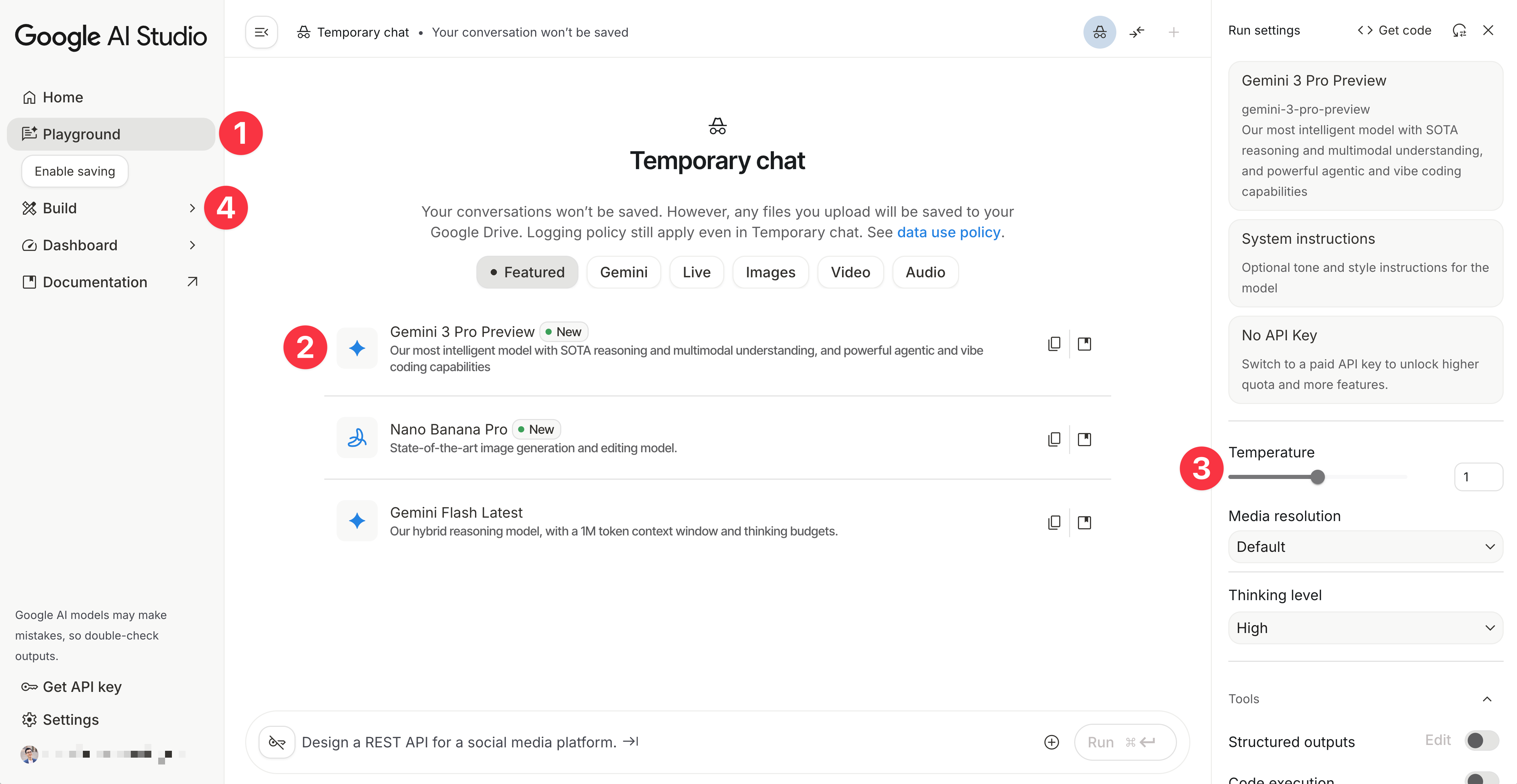
“Playground” is its main interface, where you can access a variety of models and configuration settings.
You can choose the model you want to work with. By default, it’s set to Gemini 3 Pro Preview.
There is the settings panel. “Temperature” is one of the key parameters. Higher values produce more creative outputs. That said, Google recommends setting it to 1 (by default) when using Gemini 3 Pro for the best results.
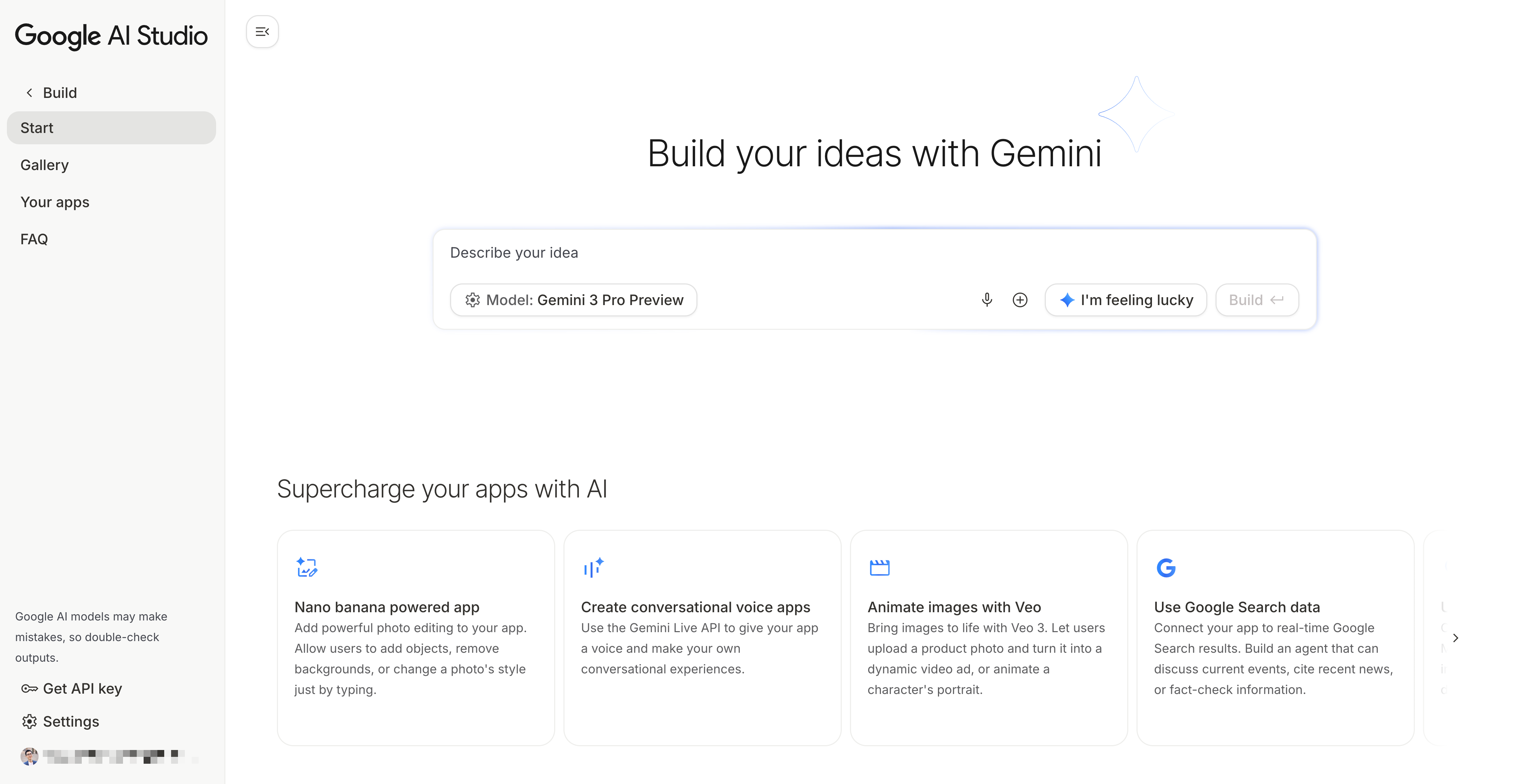
“Build” is the tab to go to for “Vibe Coding.”
When you click “Build”, the interface suddenly becomes simple and familiar, just like a typical vibe-coding tool interface, with the prompt box front and center.
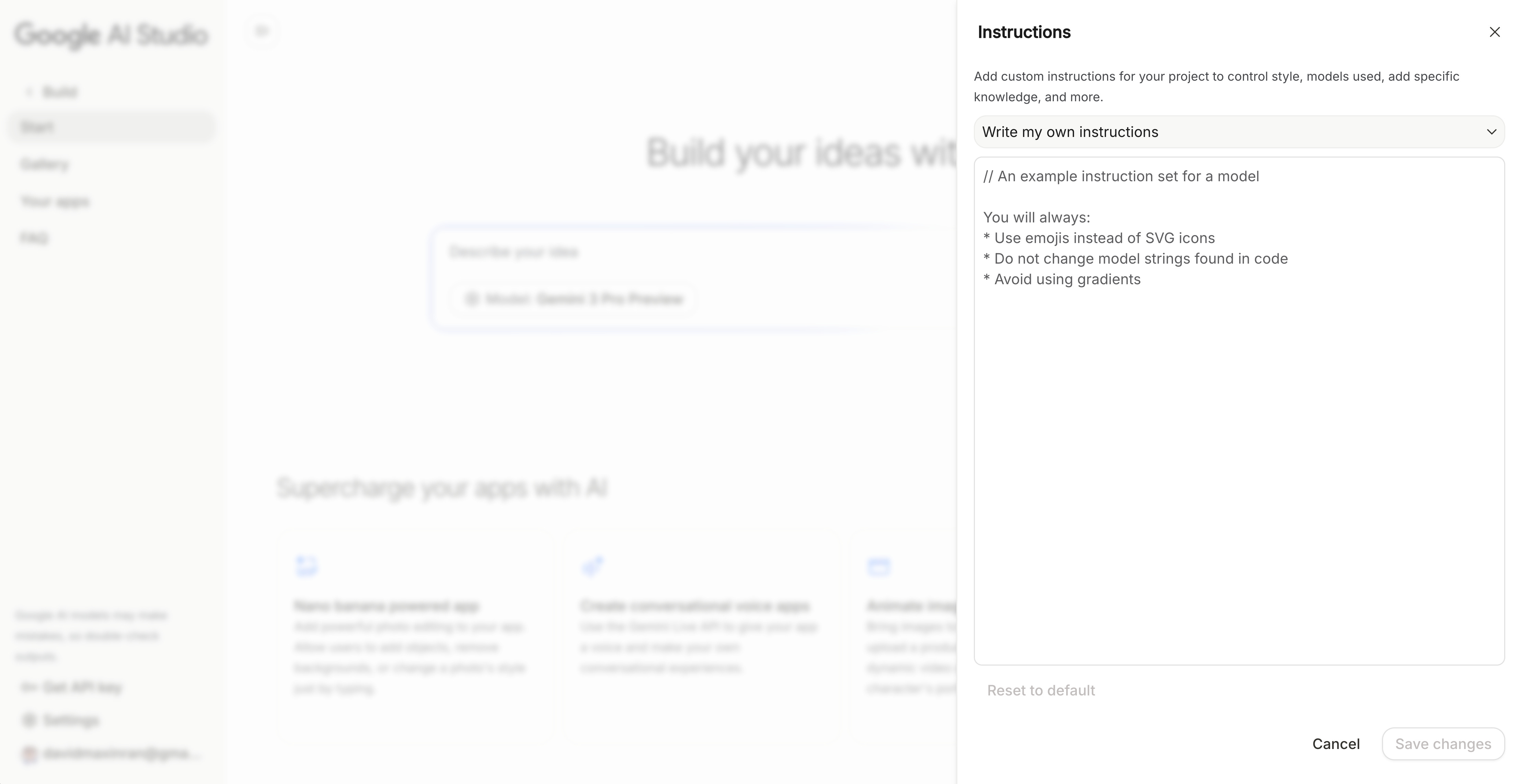
By clicking the settings icon in the prompt box, you can add custom instructions to better specify the context.
Gemini vs. Google AI Studio
I do want to mention “Gemini” as well, because the term can be confusing to some people. It has been used in different contexts. Just like I wrote in my article on Claude Code, “Claude” can also mean different things depending on the context.
First, “Gemini” can refer to the AI model family. AI models are the core engines (the “brains”) that power different apps and platforms.
Second, “Gemini” can also refer to the Gemini app. You can choose different models within the Gemini app, just like in Google AI Studio.
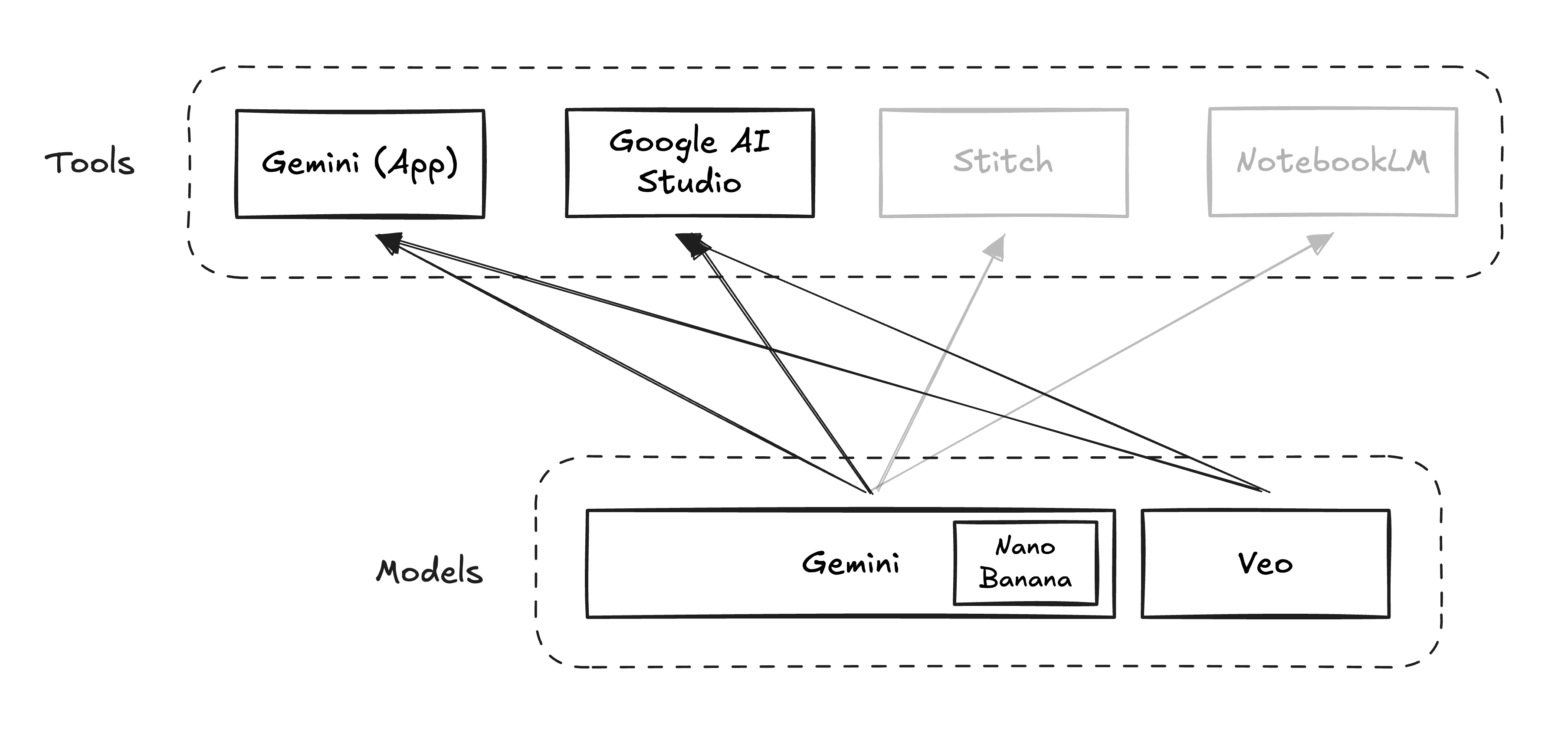
The Gemini app is designed to be simpler than Google AI Studio and better suited for everyday use, similar to ChatGPT.
Alright, let’s switch the topic back to Google AI Studio, looking at a few things that make it special.
1. Free with generous token usage
As long as you stay inside Google AI Studio, it is meant to be free. And Google is quite generous with its token usage.
This is a huge advantage, in my opinion, compared to similar tools like Lovable, V0, and others, where you often hit usage limits quickly and then have to either wait or upgrade to a paid plan.
This makes Google AI Studio more accessible for most people, especially when cost is a concern and the output quality is similar.
That said, “if it’s free, you’re the product.” Because the tool is free, the data you enter into Google AI Studio will be stored and used by Google for training purposes. Google does have different terms of service across regions (so take a closer look). They generally take personal or sensitive data seriously. Still, this can be a concern for some individuals and organizations.
Additionally, if you plan to deploy an app, you’ll probably need hosting and the access to Gemini API eventually, which can involve fees.
2. Integrate with other Google products
Google is like a giant ship, with many teams working on different products. Look at all those products (or experiments) from Google Labs:
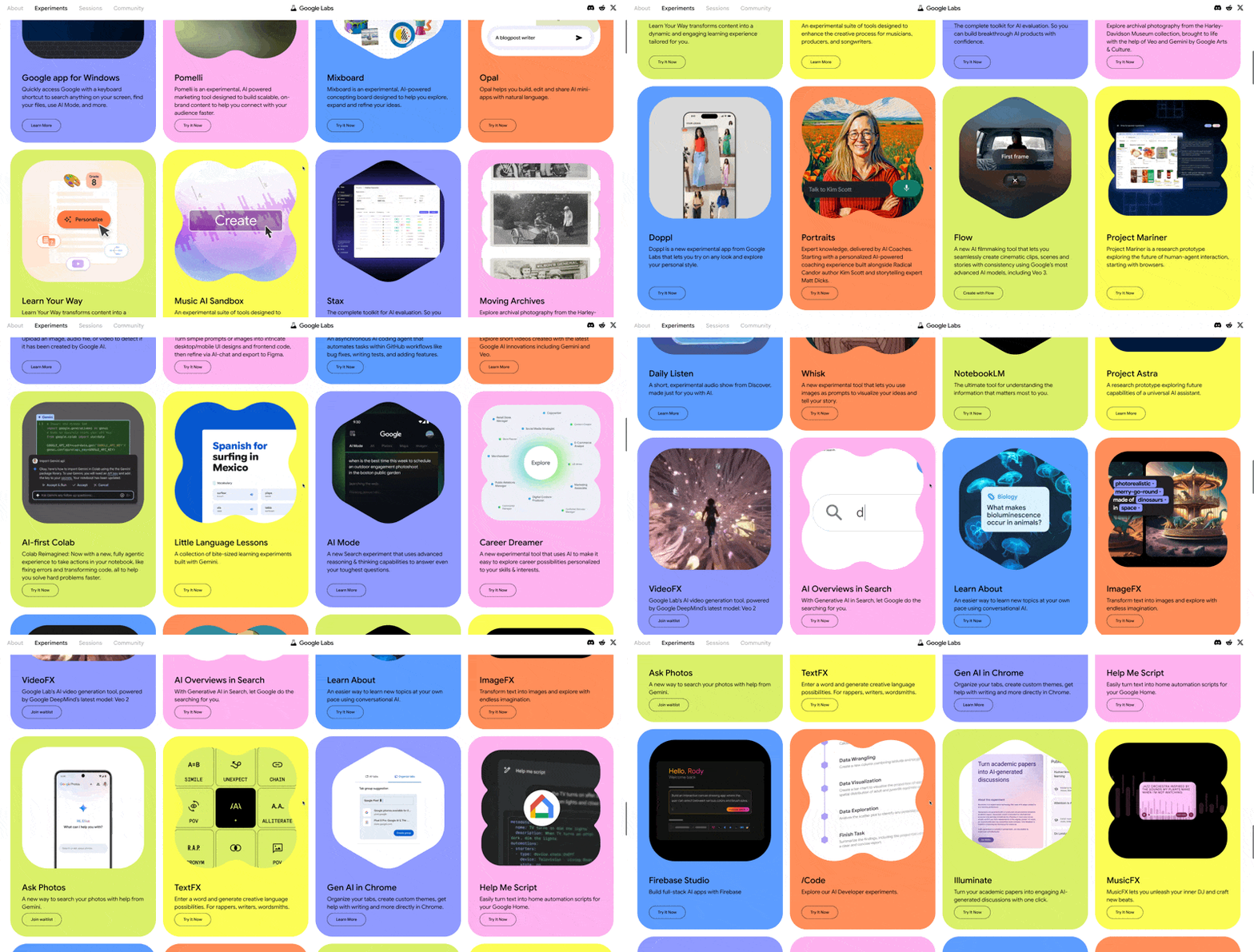
Google AI Studio has this unique potential for integrating with other Google products such as Stitch, Jules, and Opal.
Let me dive deeper with an example, specifically, Stitch → Google AI Studio.
Stitch → Google AI Studio
Google acquired Galileo AI a few months ago and rebranded it to Stitch. I have seen some interesting progress very recently. You can think of Stitch as a UI-generation tool for quick and simple design ideation, without showing you the code behind it.
For example, if I need to explore ideas for a section of an existing webpage, I can take a snapshot of the area and provide a prompt:
Can you redesign the right section with 3 design options? This is a home detail page of a real estate website. The goal of the right section is to provide what to expect for users better before they can click the “request showing” CTA. Keep the style the same as the original image.Stitch then generates three ideas. I can select one and continue generating more variations from there.
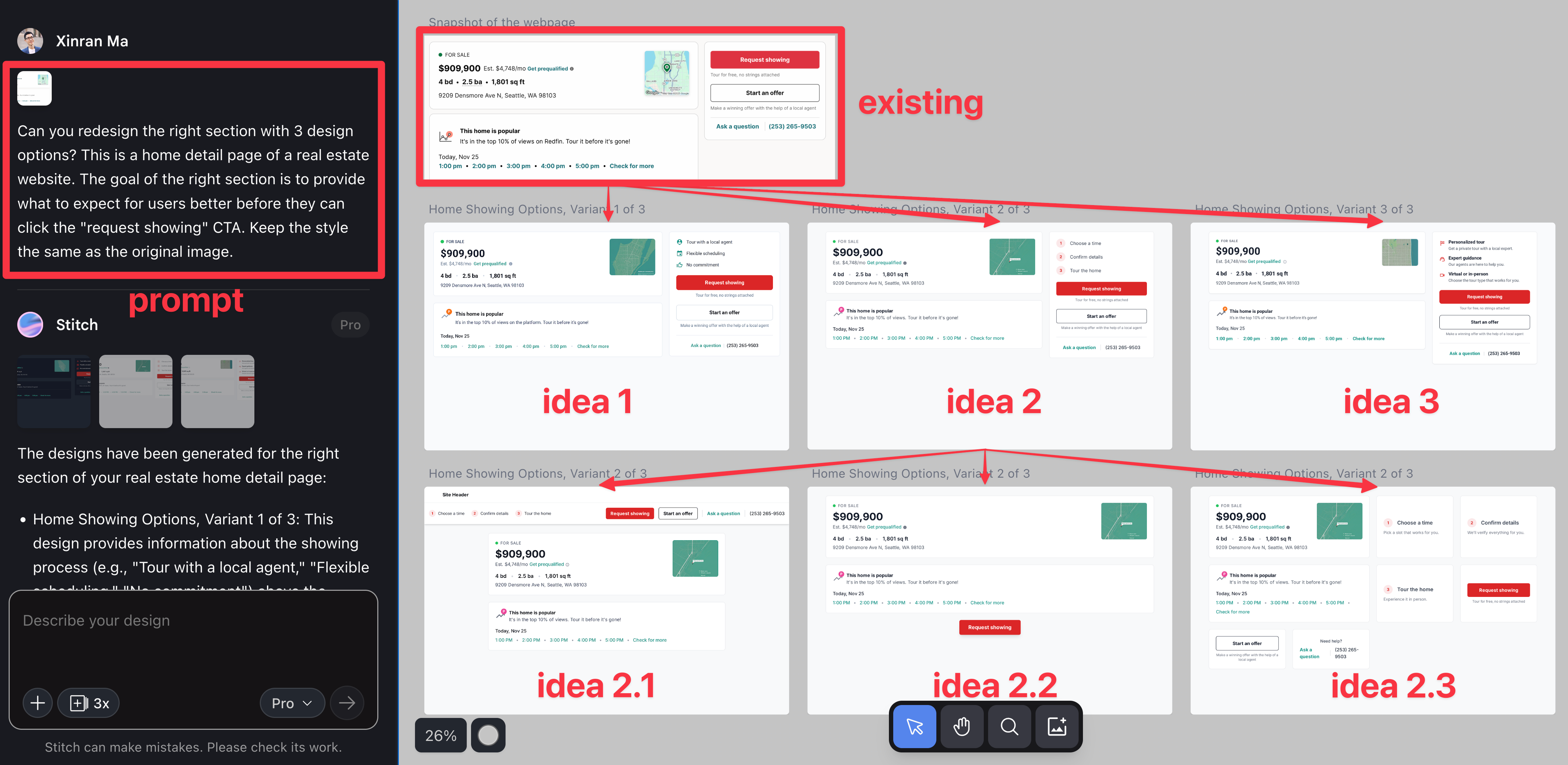
If you review the options and decide that Idea 2 is your favorite, you can simply click “Export” to move it into Google AI Studio.
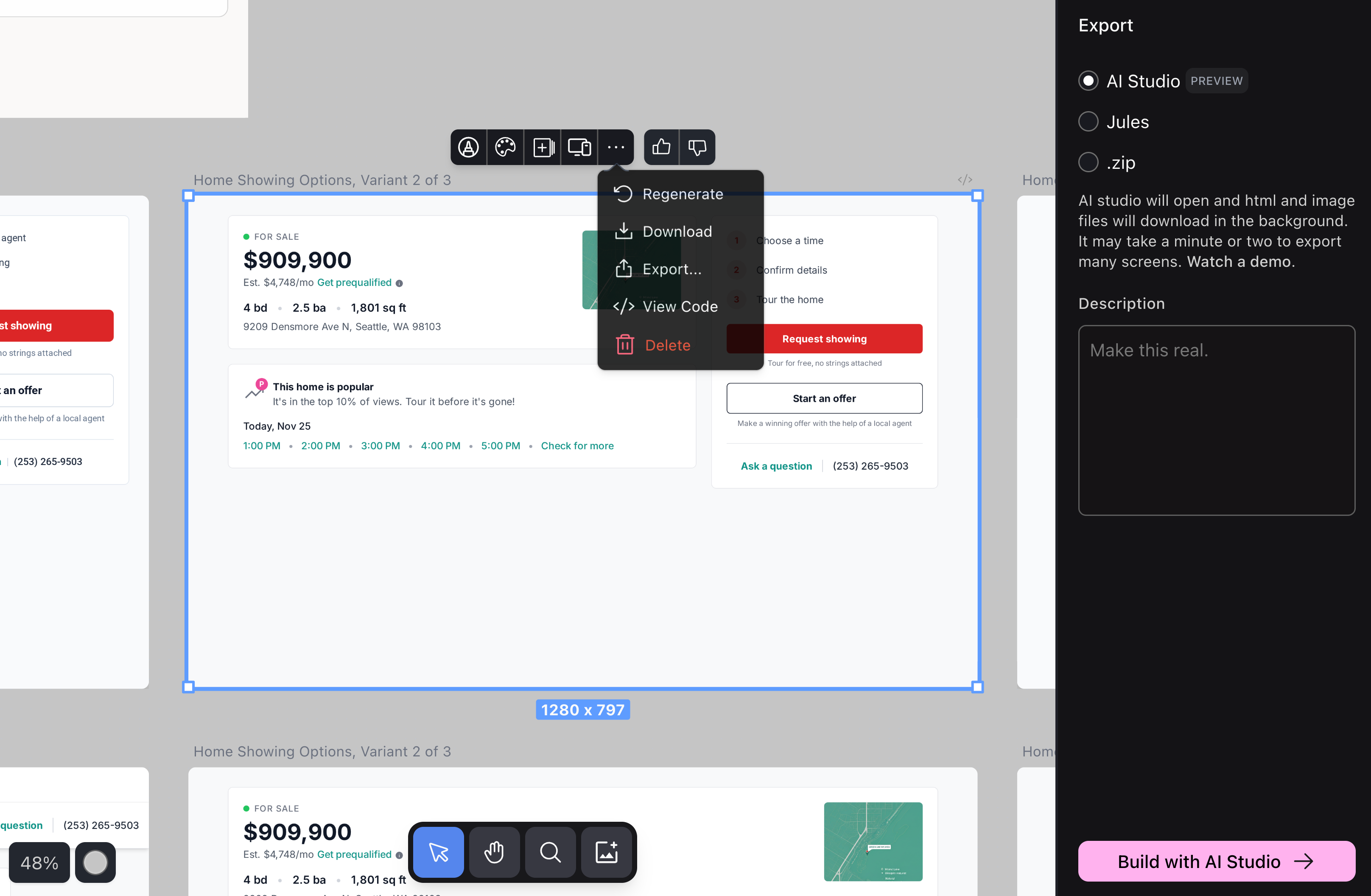
Clicking the “Build with AI Studio” button takes you to Google AI Studio, with the image and an HTML file (which is helpful) automatically added to the prompt box.
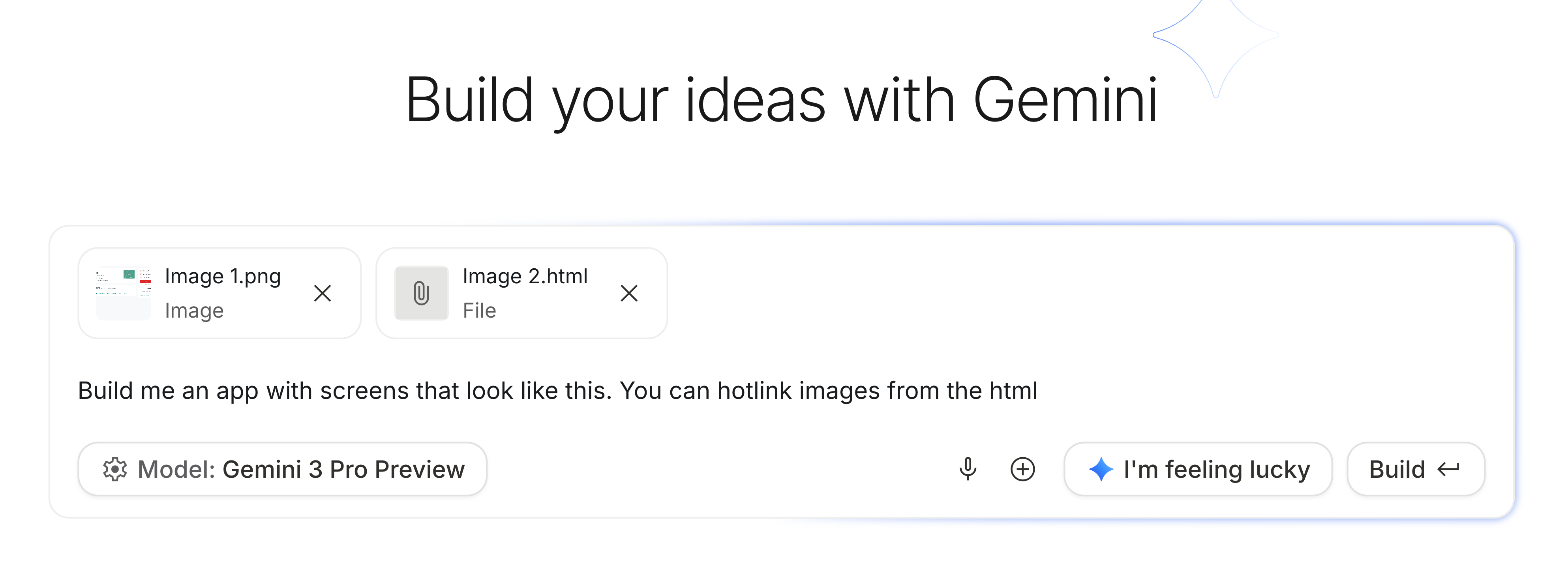
When you click “Build,” it regenerates the exact UI with code, and you can continue by refining it or turning it into an interactive prototype.
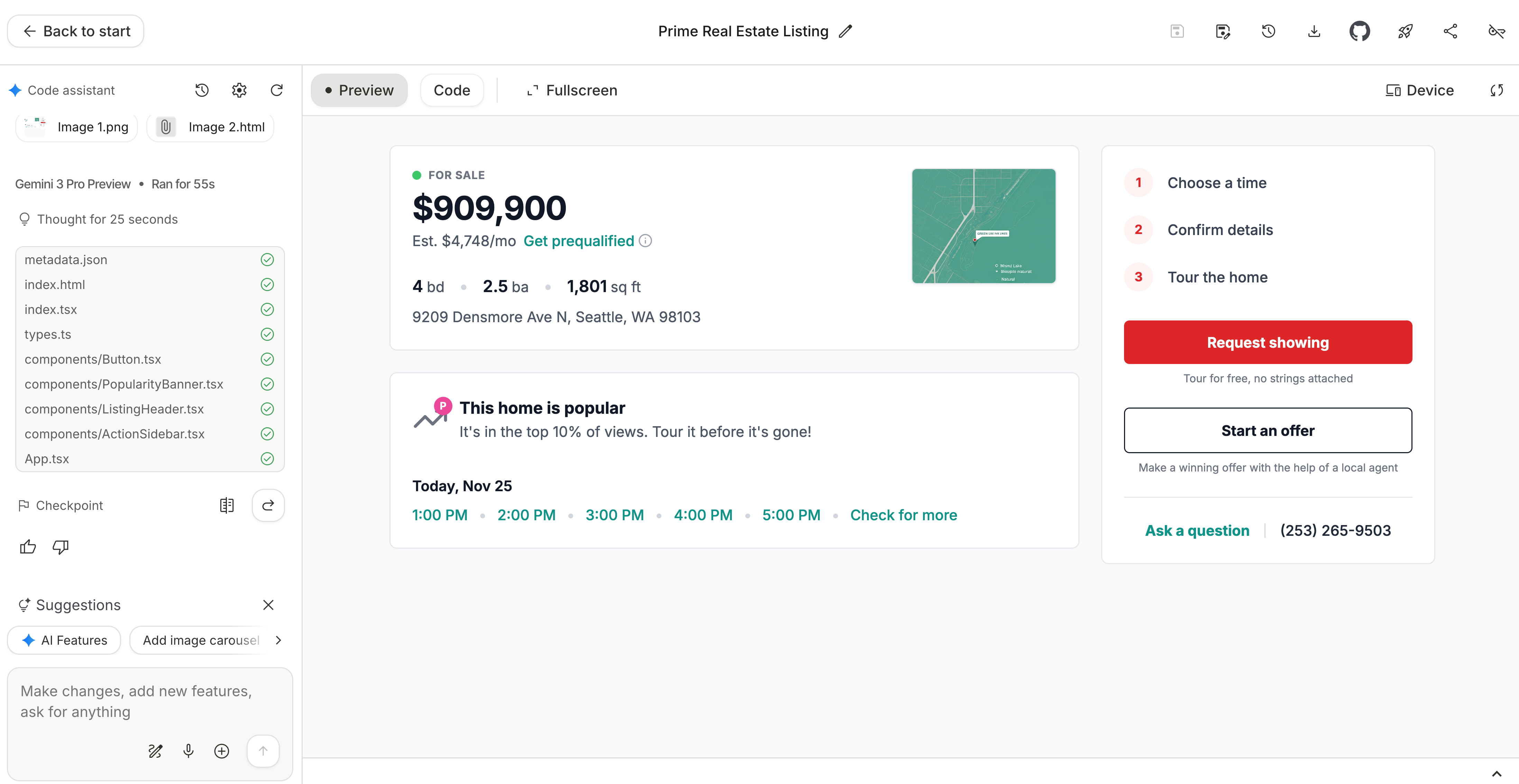
Although the outcome in Google AI Studio is surprisingly helpful and accurate, I do wish I didn’t have to move things from Stitch to Google AI Studio. It would be nicer to have everything in one place. But this is the current nature of Google products. As I said earlier, Google is a giant ship with many products, each built by different teams, and the company is still working on integrating them more tightly.
3. Different approach to editing
As I mentioned in this article, “Edit” is an important feature that I care about. We need to make revisions easily in any of the “vibe coding” tools. And that often requires the ability to select an area and ask for changes.
It is surprising to see that Google AI Studio does not have that feature widely used by other tools like Lovable and V0.
It uses a feature called “Annotate app” instead, which is more fuzzy:
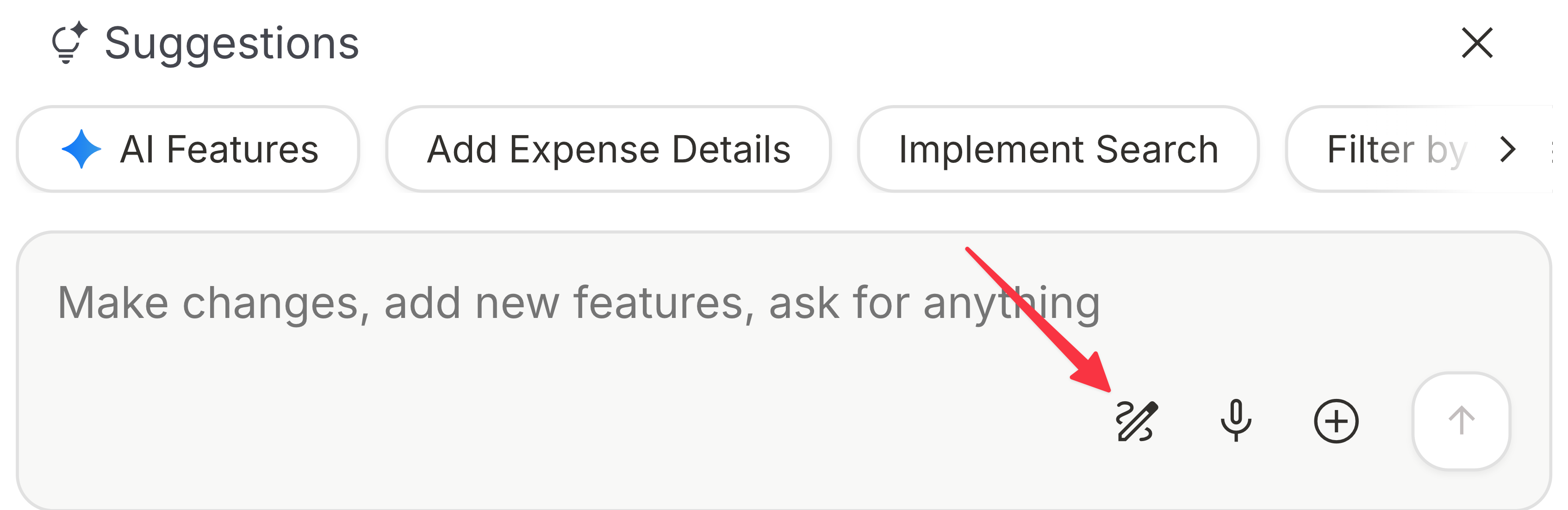
It lets you make annotations (visual callouts) on top of the UI. You can leave comments, draw arrows, free-draw, and more, but the tool I use most often is “Leave comments.”
When that tool is activated, I can draw an area, then a comment box automatically pops up for me to enter text.
I can also add multiple annotations, which I appreciate. It makes the workflow faster, rather than limiting me to selecting and fixing one area at a time.
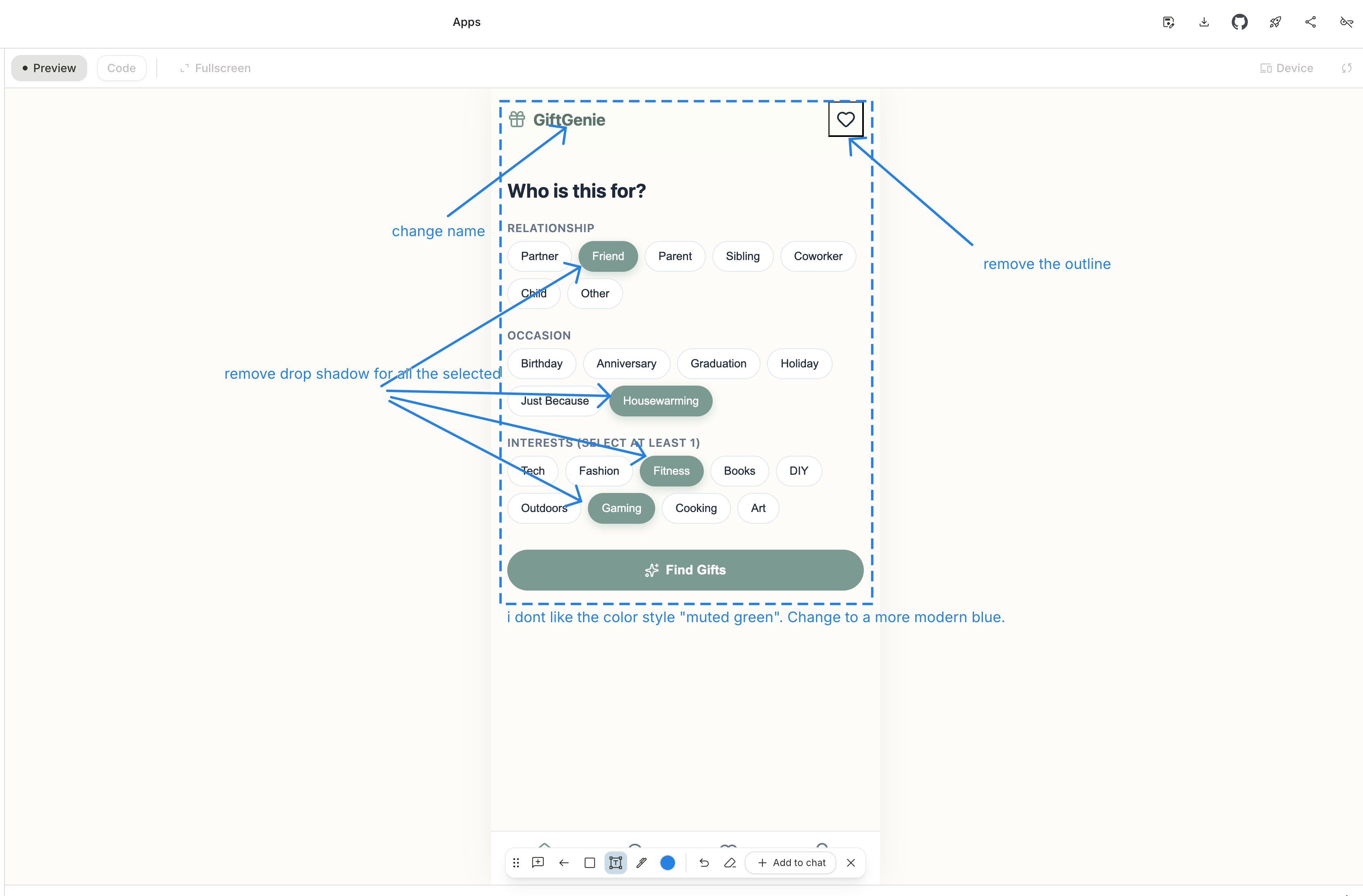
After annotating, you can send it to the chat, and it will process everything in one go. Here’s the result:
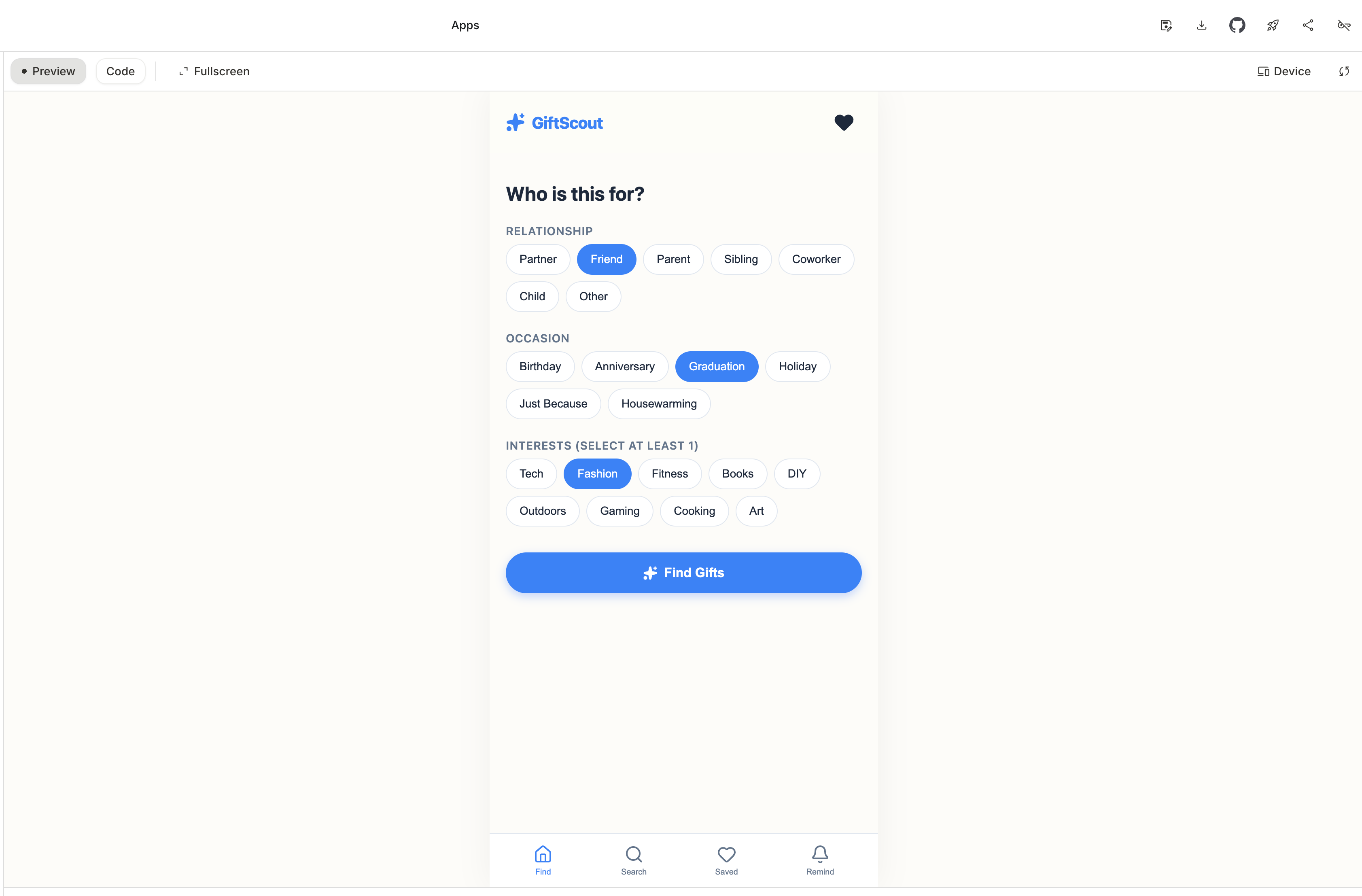
I have mixed feelings about this feature though.
On one hand, it is special because many similar “vibe coding” tools don’t offer anything like it. On the other hand, it is not much different from taking a snapshot with a third-party annotation tool, adding annotations and including the annotated image in my instructions. In fact, that’s what I sometimes do even using other tools like Lovable. So while it’s nice (and surprising) that Google AI Studio has this built in, it’s not exactly groundbreaking.
4. Access to a range of special models
In addition to a wide range of AI products, Google also offers an extensive lineup of multimodal models, from the Gemini to Nano Banana (technically still part of Gemini) to Veo. It is easy to connect to one of Google’s own models in Google AI Studio.
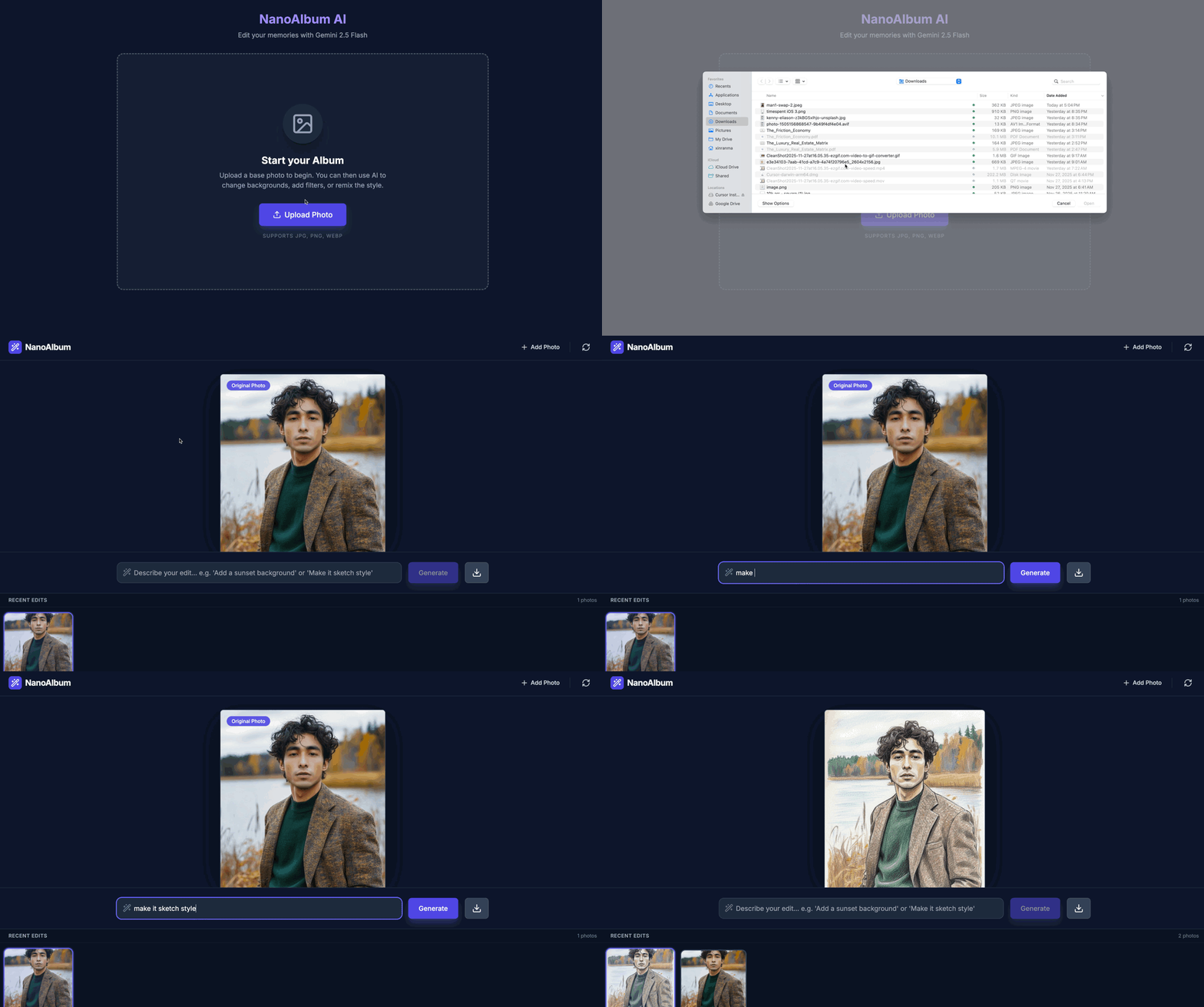
For example, if you are creating an app that highly involves image generation and editing, then building it in Google AI Studio would be effective.
Below is a snapshot of an app I built. I can upload an image and describe a style edit in the prompt window. Then it will generate a styled photo for me accordingly. Google AI Studio makes this kind of prototypes/apps easier.
That’s it for today. Thanks for reading.
See you next time!
Xinran
-
P.S. I’m addicted to cultured coconut yogurt lately. Anyone else?
P.P.S. This is what happens when you appear on Peter Yang’s podcast :)

This was a really clean breakdown, especially the “what’s actually special vs what’s just hype” framing.
The part that resonated most: free + generous tokens is a feature, but it comes with a real “you’re the product” trade-off. People talk about AI Studio like it is some pure win over Lovable or v0, but the pricing model changes what kinds of projects you can safely put inside it (personal stuff, client work, anything remotely sensitive). That nuance gets lost in the “Gemini is insane” posts.
Also loved the Stitch → AI Studio flow. That is the most “Google” thing ever: genuinely powerful pieces, but you feel the seams between teams/products. The export step is cool, but it also highlights how messy the “end-to-end” story still is.
And the “Annotate app” bit is interesting because it is kind of the opposite of what most vibe-coding tools optimize for. It feels like Google is betting on batching feedback instead of surgical edits. Not sure which will win long-term, but it is at least a different philosophy (and not just a clone).
I went through a similar detour recently (AI Studio + Gemini 3 Pro + Antigravity vs Cursor), and had the same “surprisingly capable, but the seams matter” reaction: https://thoughts.jock.pl/p/cursor-vs-google-ai-studio-antigravity-ide-comparison-2025
I really love how you break this down, even though am still trying to figure out many things. I am learning web development since 2023, I want to pursue that as a career. Do you think using the AI tools is recommended for me?